


Requesting Extra Guard Coverage
There are times when your standard security schedule is not enough — a special event at your property, a holiday weekend, or an unexpected situation that requires additional guards. Attlock makes it easy to request extra coverage directly through the portal, ensuring your security provider receives the details they need to respond quickly.
Using the Service Requests Feature
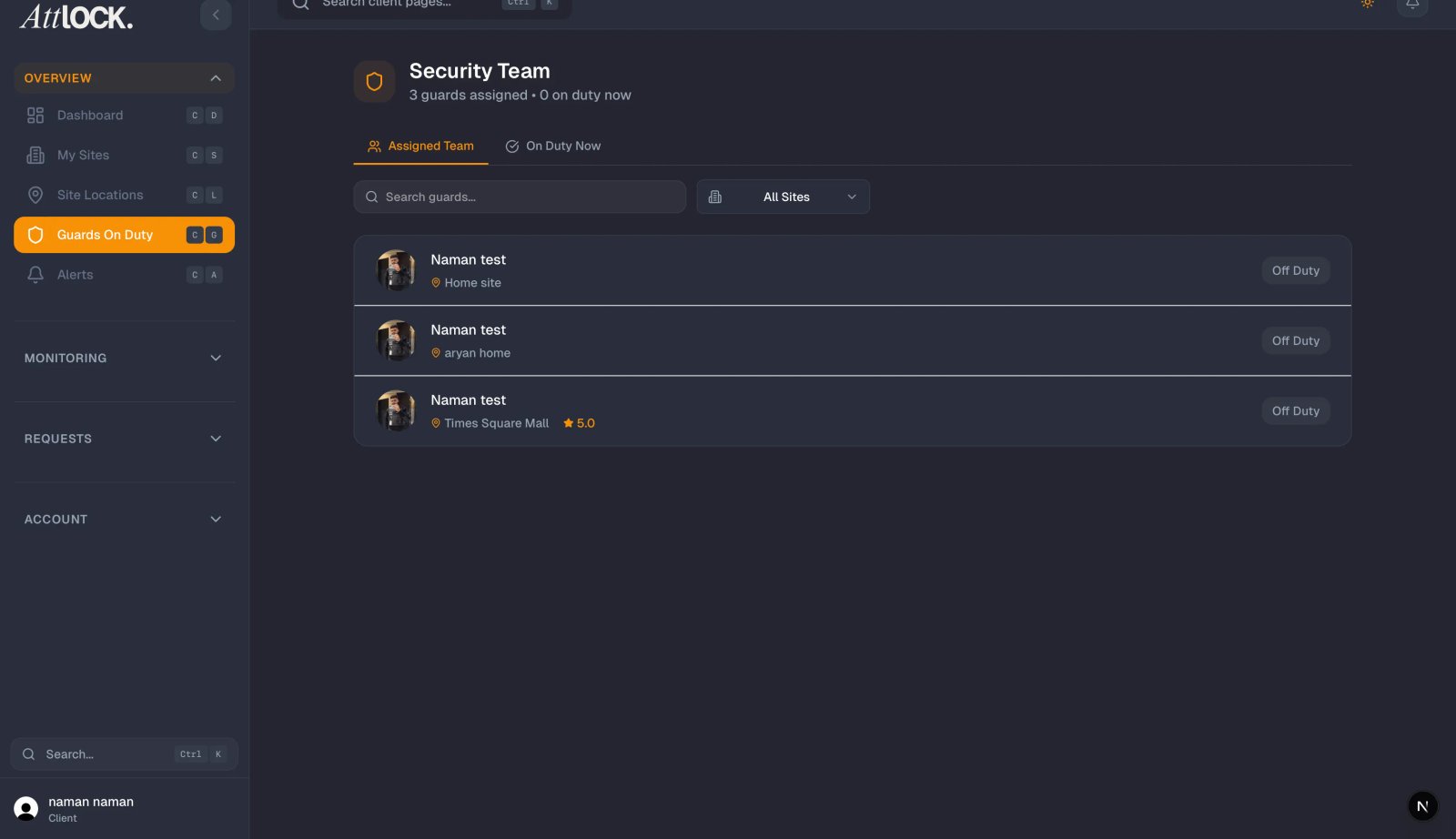
All requests for additional coverage are submitted through the Service Requests section of the Attlock portal.
- Open the Attlock app or web portal.
- Navigate to Service Requests from the main menu.
- Tap or click New Request.
- Select the request type that best describes your need.
- Fill in the details (explained below).
- Set the priority level.
- Tap Submit to send the request to your security provider.
Request Types
When creating a new request, you will choose from the following types:
- Extra Guard — Request one or more additional guards beyond your regular schedule. Use this for events, construction projects, move-in/move-out days, or any situation that requires more security presence.
- Schedule Change — Request a modification to existing guard shifts, such as changing start times, extending shift hours, or adjusting the number of guards on a specific day.
- Special Event — Request security coverage for a planned event at your property, such as a holiday party, open house, tenant gathering, or community function.
Choose the type that most closely matches your situation. If your need does not fit neatly into one category, select the closest option and provide additional context in the description field.
Setting Priority
Each request includes a priority level that helps your security provider understand how quickly they need to respond:
- Urgent — You need a response within hours. Use this for same-day or next-day needs, or situations involving a security concern.
- High — You need a response within one to two business days. Use this for requests that are time-sensitive but not immediate.
- Normal — Standard response time. Use this for requests with a comfortable lead time of several days or more.
- Low — No rush. Use this for planning purposes or future requests that are weeks away.
Setting the right priority helps your provider allocate resources appropriately. Reserve Urgent priority for genuinely time-sensitive situations.
What Information to Include
The more detail you provide, the faster your security provider can respond. Include the following in your request:
- Site — Select the specific site where coverage is needed.
- Dates and times — Specify the exact dates and hours you need additional guards.
- Number of guards — Indicate how many additional guards you are requesting.
- Reason or context — Briefly explain why extra coverage is needed (event type, expected attendance, specific concerns).
- Special instructions — Note any requirements such as uniform type, vehicle patrol, specific post locations, or access credentials the guards will need.
- Contact person — If someone other than you will be on-site to meet the guards, include their name and phone number.
How Your Security Provider Responds
Once you submit a request, your security provider is notified immediately. They will review the details and respond through the portal. You will receive a notification when they update your request.
Your provider may respond with:
- Confirmation that the request has been approved and scheduled
- Questions requesting additional details before they can proceed
- An alternative proposal if your exact request cannot be fulfilled as submitted
All communication about the request stays within the portal, creating a clear record you can reference later.
Tracking Request Status
Every service request moves through a standard set of statuses:
- Open — Your request has been submitted and is awaiting review.
- In Progress — Your security provider is actively working on fulfilling the request.
- Resolved — The request has been completed or the coverage has been confirmed.
You can check the status of any request at any time by opening the Service Requests section and selecting the request.
Planning Ahead
For the best results, submit coverage requests as early as possible:
- Events and holidays — Submit requests at least two weeks in advance to give your provider time to schedule and assign qualified guards.
- Recurring needs — If you regularly need extra coverage on certain dates (such as the first of each month or every holiday weekend), let your provider know so they can plan ahead.
- Last-minute needs — If an urgent situation arises, submit the request immediately with Urgent priority. Your provider will do their best to accommodate short-notice requests.
Related Articles
- Submitting Service Requests
- Viewing Guard Schedule
- Contacting Your Security Provider