


Setting Up Pay Rates
Pay rates determine how guard compensation is calculated across your organization. Attlock supports multiple rate types, overtime tiers, site-specific overrides, and premium pay — all feeding directly into automated payroll calculations.
Creating Pay Rate Profiles
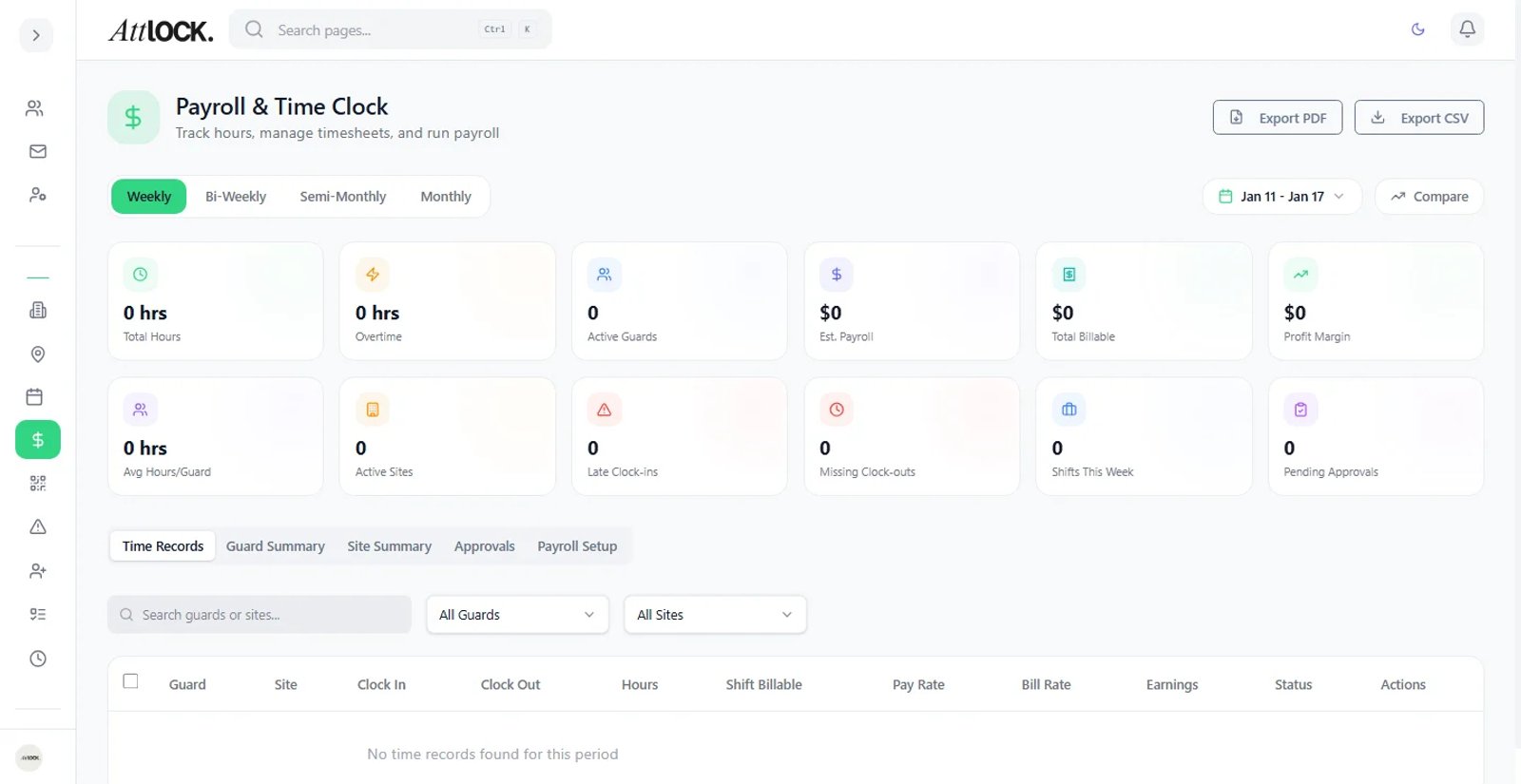
A pay rate profile defines the base compensation structure for a group of guards.
- Navigate to Settings > Payroll > Pay Rates.
- Click Create Pay Rate Profile.
- Fill in the profile details:
- Profile Name — a descriptive label (e.g., "Standard Hourly - Unarmed", "Senior Guard - Armed").
- Rate Type — select Hourly or Salaried.
- Base Rate — the standard hourly rate or annual salary amount.
- Effective Date — when this rate takes effect.
- Click Save Profile.
Once created, assign the profile to individual guards via Team > Guards > [Guard Name] > Compensation.
Tip: Create separate profiles for each distinct pay tier in your organization (e.g., entry-level, experienced, armed, supervisors). This makes it easy to apply consistent rates and adjust them in bulk when raises occur.
Overtime Rate Configuration
Overtime rules define when premium rates kick in based on hours worked.
- Go to Settings > Payroll > Overtime Rules.
- Click Add Overtime Rule.
- Configure the tiers:
- Daily Overtime — set the threshold and multiplier for daily overtime:
- After 8 hours: 1.5x (time-and-a-half)
- After 12 hours: 2.0x (double time)
- Weekly Overtime — set the threshold for weekly totals:
- After 40 hours: 1.5x
- After 60 hours: 2.0x
- Consecutive Days — optionally trigger overtime after a set number of consecutive work days (e.g., 2.0x after 7 consecutive days).
- Daily Overtime — set the threshold and multiplier for daily overtime:
- Set the priority order — daily rules are typically evaluated before weekly rules.
- Click Save.
Overtime Calculation Example
| Hours Worked (Day) | Rate Applied | --- | --- | 0–8 hours | Base rate ($20/hr) | 8–12 hours | 1.5x ($30/hr) | 12+ hours | 2.0x ($40/hr) |
|---|
Overtime is calculated automatically during payroll processing. Guards and supervisors can see overtime indicators on their shift details.
Important: Overtime rules must comply with your local labor laws. Consult your legal or HR team when configuring thresholds and multipliers.
Site-Specific Rate Overrides
Some sites may require higher or lower pay rates due to location, risk level, or client contracts.
- Go to Settings > Payroll > Pay Rates.
- Select an existing pay rate profile.
- Click the Site Overrides tab.
- Click Add Override.
- Select the site and enter the override rate.
- Optionally set an effective date and expiration date for temporary overrides.
- Click Save.
When a guard with a base rate of $20/hr works at a site with a $25/hr override, the $25/hr rate is used for that shift. The override applies only to shifts at the specified site — all other shifts use the guard's base rate.
Site overrides take precedence over the base profile rate but work together with overtime and premium multipliers.
Premium Pay for Nights and Weekends
Premium pay (also called shift differentials) compensates guards for working less desirable hours.
- Go to Settings > Payroll > Premium Pay.
- Click Add Premium Rule.
- Define the premium:
- Name — e.g., "Night Differential", "Weekend Premium".
- Type — choose Flat Amount (e.g., +$3/hr) or Percentage (e.g., +15%).
- Schedule — specify when the premium applies:
- Time-based: between specific hours (e.g., 22:00–06:00 for night shifts).
- Day-based: specific days of the week (e.g., Saturday and Sunday).
- Combined: both time and day conditions.
- Click Save.
Premiums stack on top of the base rate (or site override rate). A guard earning $20/hr with a $3/hr night differential earns $23/hr for qualifying hours.
How Rates Flow to Payroll
During payroll processing, the system calculates compensation in this order:
- Base rate from the guard's assigned pay rate profile.
- Site override replaces the base rate if applicable.
- Premium pay is added on top for qualifying hours.
- Overtime multipliers are applied to the effective rate (base + premiums).
- Holiday multipliers are applied if the shift falls on a designated holiday.
You can preview the full rate breakdown for any shift in Payroll > Current Period by clicking on a specific shift entry.
Best Practices
- Audit rates quarterly — review pay rate profiles to ensure they reflect current agreements and market rates.
- Use effective dates — when changing rates, set a future effective date rather than editing the current rate. This preserves historical payroll accuracy.
- Document site overrides — keep notes on why specific sites have different rates (client contract terms, hazard conditions, etc.).
- Test before payroll — after configuring new rates or rules, run a payroll preview to verify calculations before finalizing.
Related Articles
- Configuring Holiday Pay
- Payroll Management
- Scheduling Shifts