


Managing Your Profile and Settings
The Profile tab is your personal control center — update your contact information, secure your account, customize notifications, and configure preferences so the app works the way you need it to.
Accessing Your Profile
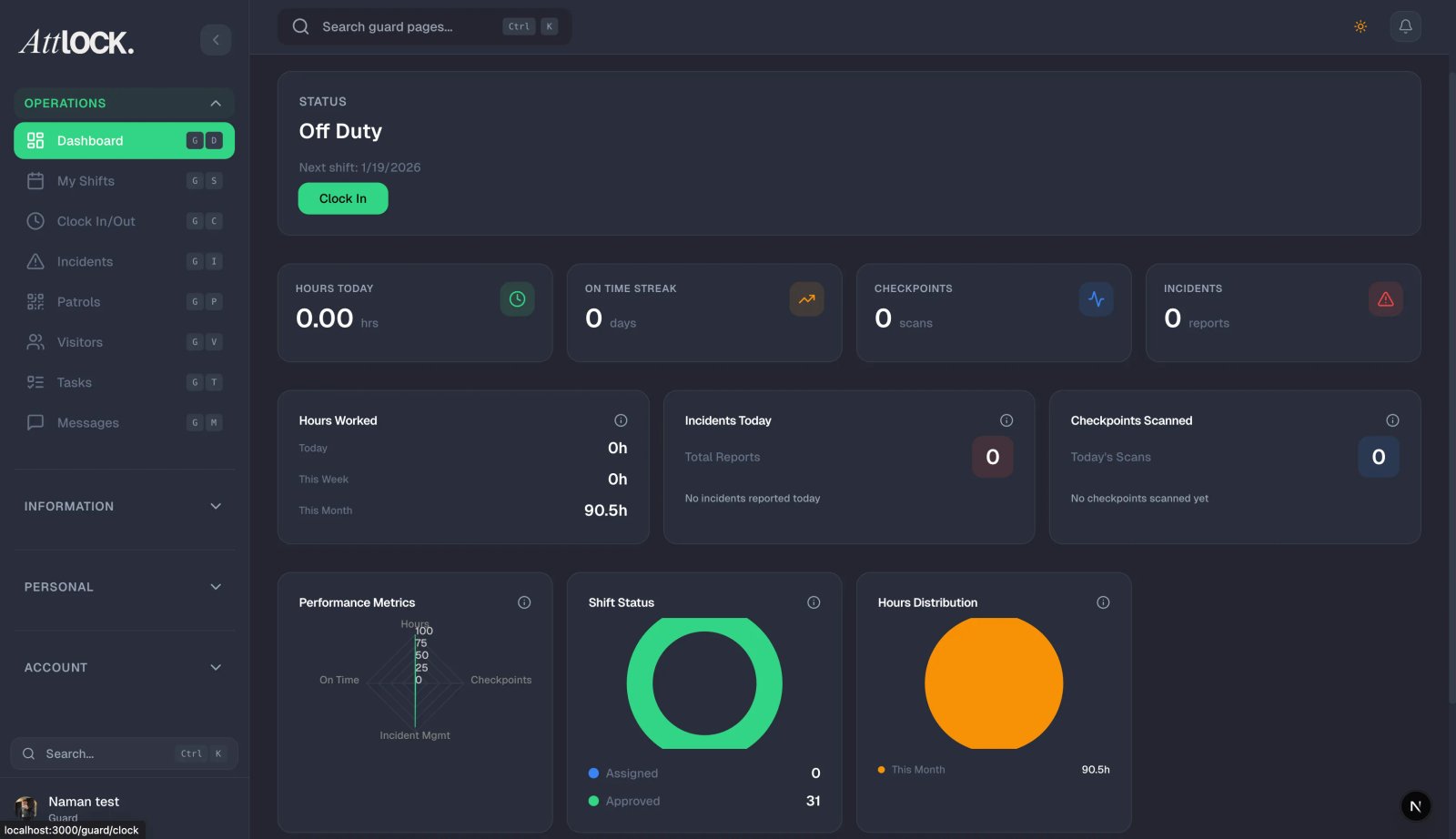
- Tap the Profile tab at the bottom of the app.
- You'll see your name, role, and profile photo at the top.
- Below that, a list of settings sections.
Account Information
Keep your personal details up to date:
- Tap "Account Information."
- You can edit the following fields:
- First Name — your given name.
- Last Name — your family name.
- Email — your login email address. Changing this may require verification.
- Phone Number — your primary contact number.
- Emergency Contact Name — the person to call if something happens to you on shift.
- Emergency Contact Phone — their phone number.
- Tap "Save Changes" when you're done.
Important: Keep your emergency contact information current. This is the number your company will call if a welfare check is missed or an emergency alert is triggered.
Security Settings
Protect your account with these security options:
- Tap "Security."
- Available options:
Changing Your Password
- Tap "Change Password."
- Enter your current password to verify your identity.
- Enter your new password — choose something strong (at least 8 characters with a mix of letters, numbers, and symbols).
- Confirm the new password by typing it again.
- Tap "Update Password" to save.
Biometric Login
- Toggle fingerprint or Face ID on or off.
- When enabled, you can unlock the app with your fingerprint or face instead of typing your password.
- This is highly recommended — it's both faster and more secure.
Two-Factor Authentication (2FA)
- Toggle to enable an extra layer of security.
- When enabled, you'll need both your password and a verification code (sent to your phone or email) to log in.
- This prevents unauthorized access even if someone learns your password.
Active Sessions
- View all devices where your account is currently logged in.
- If you see an unfamiliar device, you can sign it out remotely.
Notification Settings
Customize which alerts you receive:
- Tap "Notification Settings."
- Toggle each alert type on or off:
- Shift reminders — alerts before your shift starts.
- Clock-in reminders — nudges when it's time to clock in.
- Incident alerts — notifications about new incidents at your site.
- Message notifications — when new messages are posted to the board.
- Announcement alerts — company and site announcements.
- Training reminders — when you have assigned training to complete.
Tip: Keep all notifications enabled, especially shift reminders and incident alerts. You can always mute non-critical ones later, but missing an important alert is worse than receiving too many.
Language and Timezone
Set the app to your preferred language and timezone:
- Tap "Language & Timezone."
- Language — select your preferred language (English, Spanish, French, Portuguese, and more).
- Timezone — set your local timezone. This ensures shift times, schedules, and timestamps display correctly.
- Tap "Save" to apply.
Other Profile Sections
Your Profile tab also gives you quick access to several read-only information screens:
- My Info — view your badge number, hire date, role, and employment status. This information is managed by your admin.
- Employer Info — your company's name, address, and HR contact details.
- Site Info — your current assigned site's name, address, supervisor contact info, and emergency procedures. Familiarize yourself with this before every shift.
- Phonebook — a directory of emergency contacts, supervisor numbers, and important phone numbers for your site.
- Support (FAQ) — help articles and troubleshooting guides (like this one).
- About — the app version number and legal information.
- Terms & Conditions — the platform terms of service.
Signing Out
To sign out of the app:
- Scroll to the bottom of the Profile screen.
- Tap "Sign Out."
- Confirm when prompted.
Note: Signing out means you'll need to enter your credentials (or use biometrics) to log back in. Make sure you're not in the middle of a shift before signing out.
Tips
- Keep emergency contacts updated at all times — they're the first people contacted in a panic situation or missed welfare check. Review them monthly.
- Enable biometric login — it's the fastest way to get into the app and doesn't sacrifice security. Especially useful during urgent situations.
- Review notification settings when you start — turn on everything initially, then fine-tune later based on what's useful.
- Check your Site Info before each shift — especially at new or unfamiliar sites. Know the emergency procedures, supervisor contacts, and site layout.
- Use a strong, unique password — don't reuse passwords from other accounts. Your Attlock account contains sensitive security information.
- Enable two-factor authentication — it adds a few seconds to login but significantly reduces the risk of unauthorized access.
- Keep the app updated — check for updates weekly. New versions often include security patches and performance improvements.
Related Articles
- Getting Started with the Guard Mobile App
- Clocking In and Out of Shifts
- Using the Emergency SOS Button
- Notifications and Alerts
- Using the Phonebook
- Site Info and Employer Details