


Managing Your Client Team
The Attlock client portal allows you to invite colleagues and team members so they can access security information for your sites. Whether you need a facility manager to review patrol reports or an operations lead to track guard schedules, team management makes it straightforward to control who sees what.
Accessing Team Management
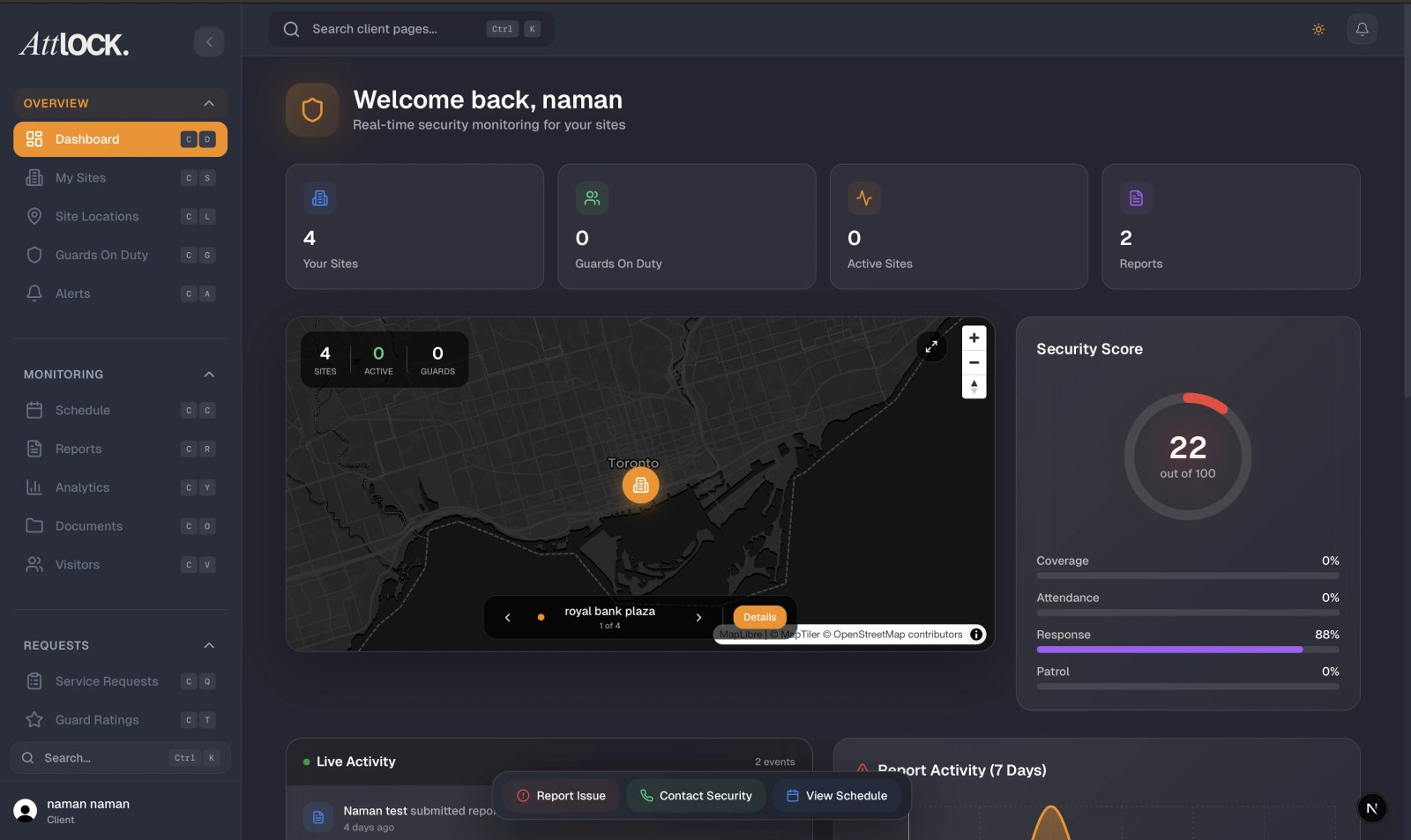
- Open the Attlock Client app or log in to the web portal.
- Navigate to Profile > Team Members.
- You will see a list of all current team members associated with your client account, along with their roles and status.
Only the primary account holder and users with the Team Admin permission can manage team members.
Adding a New Team Member
To invite a colleague to your client portal:
- From the Team Members screen, tap Invite Member.
- Enter the person's full name and email address.
- Select a role for the new member (see the Roles and Permissions section below).
- Optionally, choose which sites the member should have access to. By default, new members can view all sites assigned to your account.
- Tap Send Invitation.
The invited person will receive an email with a link to create their account. The invitation expires after 7 days. You can resend it from the Team Members screen if needed.
Roles and Permissions
Each team member is assigned a role that determines what they can see and do within the portal:
| Role | Permissions | ------ | ------------- | Primary Contact | Full access to all features, team management, billing, and site data | Team Admin | Can invite and remove members, view all sites and reports, but cannot manage billing | Site Manager | View assigned sites, reports, guard activity, and visitor management for those sites only | Viewer | Read-only access to assigned sites, reports, and schedules |
|---|
You can change a team member's role at any time from their profile within the Team Members screen.
Assigning Site Access
By default, new team members inherit access to all sites on your account. To restrict access to specific sites:
- Open the team member's profile from the Team Members list.
- Tap Site Access.
- Toggle off All Sites and select only the sites this person should be able to view.
- Tap Save.
Site-restricted members will only see data, reports, and guard activity for their assigned locations.
Removing a Team Member
To revoke a team member's access:
- Go to Profile > Team Members.
- Tap the member you want to remove.
- Tap Remove Member at the bottom of their profile.
- Confirm the removal when prompted.
The removed member will immediately lose access to the portal. They will not be notified automatically, so you may want to inform them directly.
Managing Pending Invitations
Pending invitations appear in the Team Members list with an Invited status badge. From here you can:
- Resend the invitation if it expired or the recipient did not receive it.
- Revoke the invitation to cancel it before the person accepts.
Best Practices
- Use the Viewer role for stakeholders who only need to review reports and do not require editing capabilities.
- Restrict site access for team members who manage specific locations rather than your entire portfolio.
- Audit your team list regularly to remove former employees or contractors who no longer need access.
- Keep at least two Team Admins so you always have a backup if the primary contact is unavailable.
Related Articles
- Getting Started with the Client Portal
- Client Profile & Account Settings
- Viewing Site Reports
- Viewing Alerts