


Managing Guards
The Guards page is your central roster for every security guard in your company. From here you can create profiles, track certifications, manage availability, and handle bulk operations.
Accessing Guards
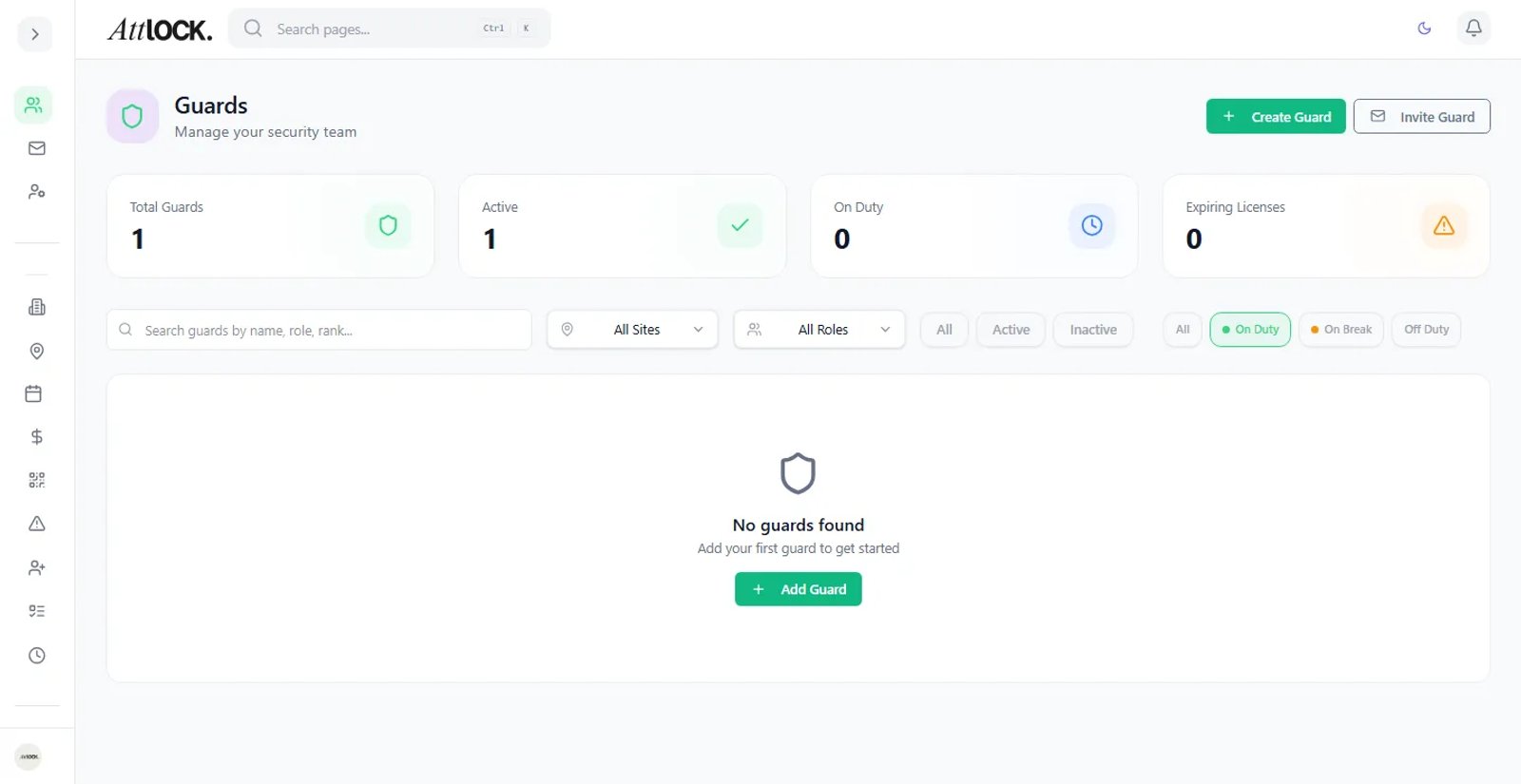
Navigate to Team → Guards in the sidebar, or press G and search "Guards".
Guard List
The main view shows all guards in a searchable, filterable table:
- Search by name, email, or phone number.
- Filter by Status: Active or Inactive.
- Filter by Site: see guards assigned to a specific location.
- Filter by Role: Static Guard, Patrol Guard, Supervisor, etc.
Each row displays the guard's name, status badge, assigned site, contact info, and role.
Creating a New Guard
- Click Add Guard (top right).
- Fill in the required fields across the following tabs:
Details Tab
- First Name and Last Name (required)
- Email (required)
- Phone Number
- Address (street, city, state, zip, country)
- Date of Birth
Employment Tab
- Employment Type: Full-time, Part-time, Casual, On-call, Contract, Seasonal
- Role Type: Static Guard, Patrol Guard, Mobile Guard, Event Security, VIP Protection, Supervisor, Lead Guard
- Skills: Armed, Unarmed, K9, Fire Watch, Executive Protection, Crowd Control, Patrol, Access Control, CCTV Monitoring
- Languages: English, Spanish, French, Mandarin, Arabic, Portuguese, Hindi, Other
- Shift Preferences: Day Shift, Night Shift, Weekends, Overnight
Availability Tab
- Set the guard's weekly availability (days and time ranges).
- View scheduled shifts already assigned.
- Mark unavailable dates (vacations, personal days).
Medical Tab
- Emergency Contacts: Name, Relationship, Phone, Email (add multiple).
- Blood Type: A+, A−, B+, B−, AB+, AB−, O+, O−.
- Allergies: free-text field.
Uniform Tab
- Shirt Size, Pants Size, Shoe Size.
License Tab
- Add multiple licenses/certifications:
- License type (Security Guard License, First Aid, CPR, Firearms Permit, etc.)
- License number
- Issue and expiry dates
- Issuing authority
- Click Save to create the guard profile.
Editing a Guard
- Click any guard row to open their profile.
- Switch between tabs (Details, Employment, Availability, Medical, Uniform, License).
- Make your changes and click Save.
Deactivating or Activating Guards
- Single guard: Click the three-dot menu on a guard row → Deactivate or Activate.
- Bulk: Select multiple guards using checkboxes → click Bulk Deactivate or Bulk Activate from the toolbar.
Deactivated guards cannot clock in or be assigned to shifts but their data is preserved.
Deleting a Guard
Click the three-dot menu → Delete. This permanently removes the guard record. A confirmation dialog will appear.
Warning: Deletion is irreversible. Prefer deactivation unless you need to remove the record entirely.
Activity Stream
The Activity Stream tab on each guard's profile shows a chronological log of their actions — clock-ins, scans, incidents, shift changes, and more.
Guard Overview Page
For a birds-eye view, visit Team → Guard Overview. This page shows:
- On-duty vs. off-duty counts.
- Guard locations on a map.
- Performance metrics.
- Assignment distribution.
Tips
- Keep licenses up to date — expired certifications can flag compliance issues.
- Use Skills and Languages to match guards to client requirements.
- Set Shift Preferences to streamline scheduling.
Related Articles
- Scheduling Shifts
- Managing Teams
- Access Control & Roles
- Guard Activity Stream