


Managing Guard Performance Reviews
This article is for Administrators and Company Admins.
Regular performance reviews help you recognize strong performers, support guards who need development, and maintain a documented record for HR and compliance purposes. Attlock's performance review tools let you build structured review templates, schedule reviews, collect supervisor feedback, and track outcomes — all within the platform.
Where to Find Performance Reviews
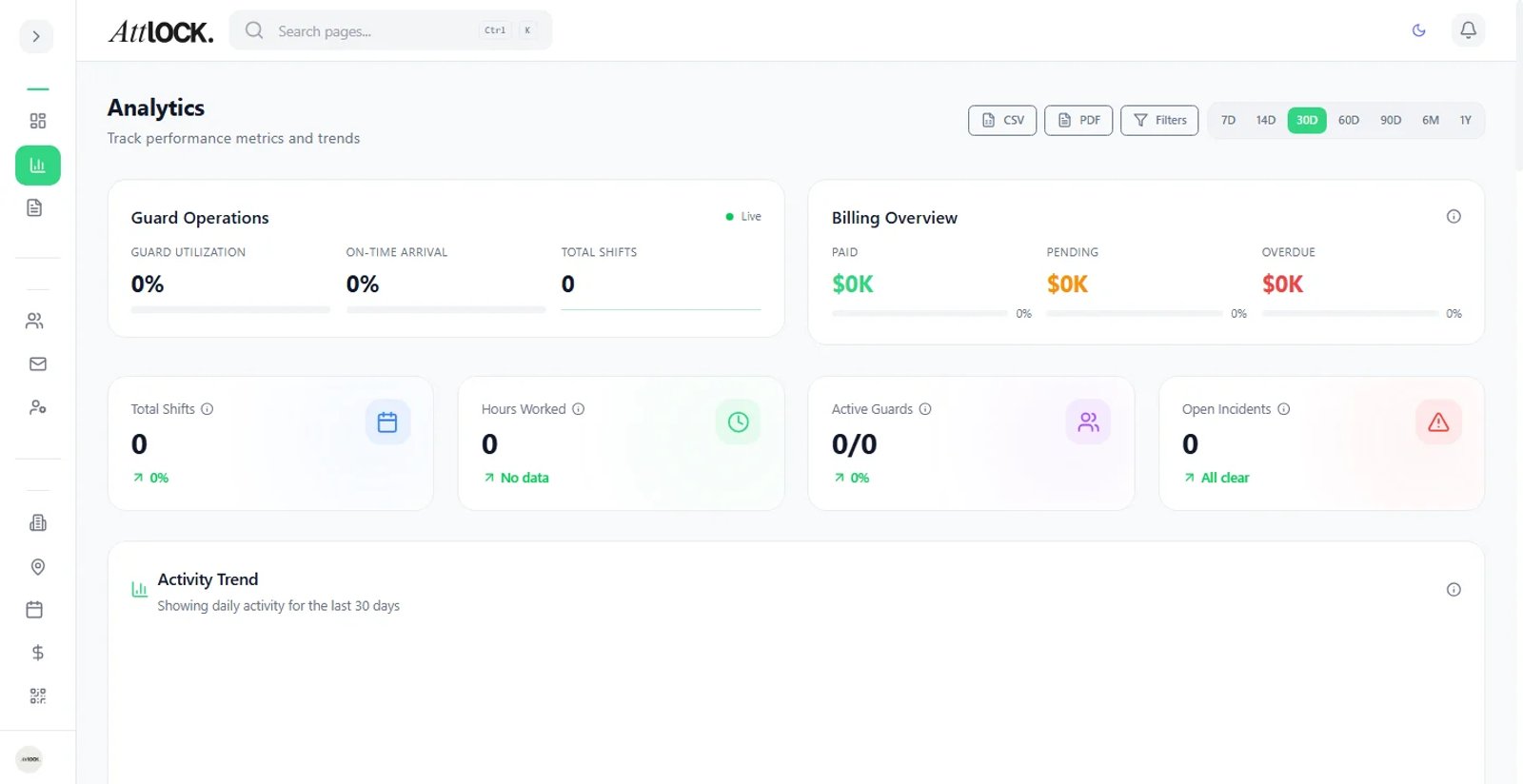
Navigate to Team → Guards → [Guard Name] → Performance to view a single guard's review history. For a company-wide view, go to Team → Performance Reviews.
Creating a Review Template
Before scheduling reviews, create a template that defines the criteria and rating scale.
- Go to Settings → HR → Performance Review Templates.
- Click New Template.
- Give the template a name (e.g., "Quarterly Guard Review", "Probation Review").
- Add Review Criteria — each criterion has:
- A name (e.g., Punctuality, Incident Response, Client Feedback)
- A description to guide the reviewer
- A rating scale (1–5 stars, or custom labels like Unsatisfactory / Meets Expectations / Exceeds Expectations)
- Add an Overall Comments field for free-text feedback.
- Toggle Guard Self-Assessment if you want guards to complete a self-evaluation before the supervisor review.
- Click Save Template.
Scheduling a Performance Review
- Go to Team → Performance Reviews → Schedule Review.
- Select the Guard.
- Select the Review Template.
- Set the Review Date and assign a Reviewer (typically the guard's supervisor).
- Optionally set a Review Period (e.g., Q1 2026).
- Click Schedule.
The assigned reviewer receives an email notification with a link to complete the review. If self-assessment is enabled, the guard also receives a notification to complete their portion first.
Completing a Review
Reviewers access their pending reviews from Team → Performance Reviews → Pending.
- Open the review.
- Rate each criterion using the template's scale.
- Add comments for each criterion and an overall summary.
- If the guard completed a self-assessment, the reviewer can see it alongside their own ratings.
- Set an Outcome:
- Satisfactory — no action required
- Improvement Required — triggers an improvement plan workflow
- Exceptional — flags the guard for recognition or promotion consideration
- Click Submit Review.
Once submitted, the review is locked and added to the guard's permanent record.
Improvement Plans
When a review outcome is set to Improvement Required, Attlock prompts the reviewer to create an improvement plan:
- Define specific improvement goals with measurable targets.
- Set a review date for a follow-up check-in.
- Assign a supporting supervisor responsible for coaching.
- The guard receives a notification with the plan details.
Progress against the improvement plan is tracked in the guard's profile under Performance → Improvement Plans.
Performance Analytics
The Team → Performance Reviews → Analytics page provides company-wide insights:
- Average scores by criterion — identify systemic training gaps
- Score distribution — see how your workforce is rated overall
- Review completion rate — track whether scheduled reviews are being completed on time
- Top performers — guards consistently rated Exceptional
- Guards on improvement plans — current active plans and their due dates
Bulk Review Scheduling
For annual or quarterly review cycles:
- Go to Team → Performance Reviews → Bulk Schedule.
- Filter guards by site, team, or role.
- Select the review template and date range.
- Assign reviewers (auto-assign to each guard's primary supervisor, or manually assign).
- Click Schedule All.
Best Practices
- Review quarterly for new guards — the first 90 days are critical for identifying fit and training needs.
- Use self-assessments — they surface guard perspectives and make reviews more collaborative.
- Document improvement plans thoroughly — vague plans are hard to enforce and create legal risk.
- Follow up on improvement plans — schedule the follow-up review at the time you create the plan.
- Export reviews for HR records — use the Export button on any review to generate a PDF for your files.
Related Articles
- Managing Guards
- Guard Disciplinary Notes
- Managing Teams
- Compliance, Policies & Training