


Logging Out of Attlock
Signing out of Attlock ensures your account stays secure, especially on shared or public devices. Here's how to log out from every Attlock platform.
Web Dashboard (Admins & Supervisors)
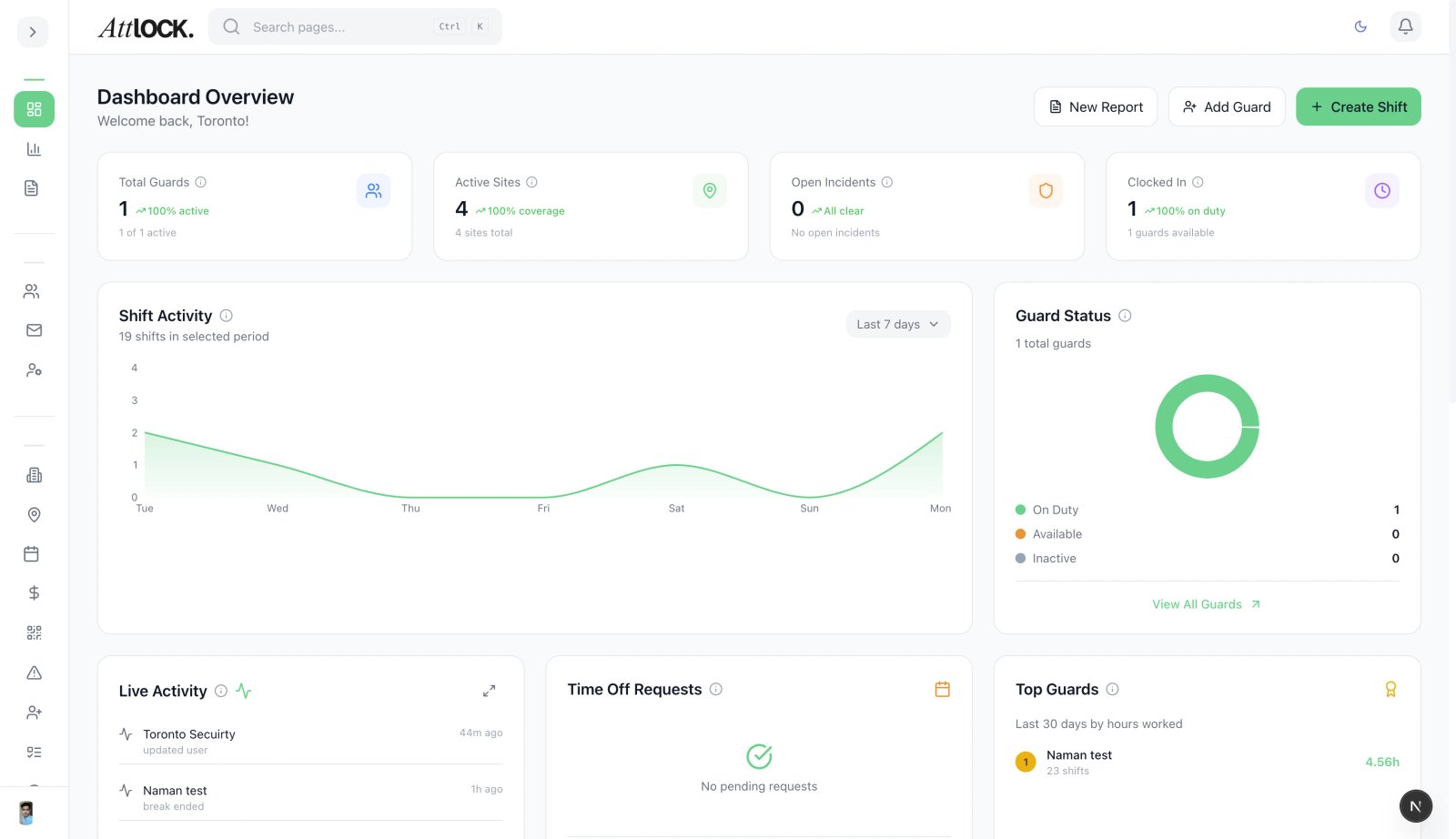
- Click your profile avatar in the top-right corner of the dashboard.
- Select "Sign Out" from the dropdown menu.
- You'll be redirected to the sign-in page.
Tip: Always sign out when using a shared or public computer. Your session may remain active if you simply close the browser tab.
Guard Mobile App
- Open the Profile tab at the bottom of the app.
- Scroll to the bottom of the screen.
- Tap "Sign Out."
- Confirm when prompted.
Important: Make sure you are not in the middle of an active shift before signing out. If you're clocked in, clock out first to avoid timesheet issues.
Admin Mobile App
- Open the Profile tab at the bottom of the app.
- Scroll to the bottom of the screen.
- Tap "Sign Out."
- Confirm when prompted.
Client Portal
- Click your profile avatar or name in the top-right corner.
- Select "Sign Out" from the menu.
- You'll be returned to the sign-in page.
Troubleshooting
I signed out but I'm still logged in
- Clear your browser cache and cookies, then reload the page.
- If using the mobile app, force-close the app and reopen it.
I can't find the Sign Out button
- On the web dashboard, look for your profile avatar in the top-right corner.
- On mobile apps, navigate to the Profile tab and scroll to the very bottom.
I want to sign out from all devices
- Go to Profile → Security → Active Sessions (available on guard and admin apps).
- You can view and remotely sign out from any device.
Tips
- Sign out on shared devices — never leave your account logged in on a computer or phone that others can access.
- Use biometric login — if you sign out frequently on mobile, enable fingerprint or Face ID for quick re-entry.
- Check active sessions periodically — review your active sessions under Security settings to ensure no unauthorized devices are logged in.
Related Articles
- Managing Your Profile and Settings
- Getting Started with Attlock
- Security Best Practices