


Guard Wellness Monitoring
The Wellness Monitor helps you keep guards safe during shifts by sending periodic check-in prompts to their mobile devices. If a guard fails to respond, the system escalates automatically so supervisors can intervene.
Accessing the Wellness Dashboard
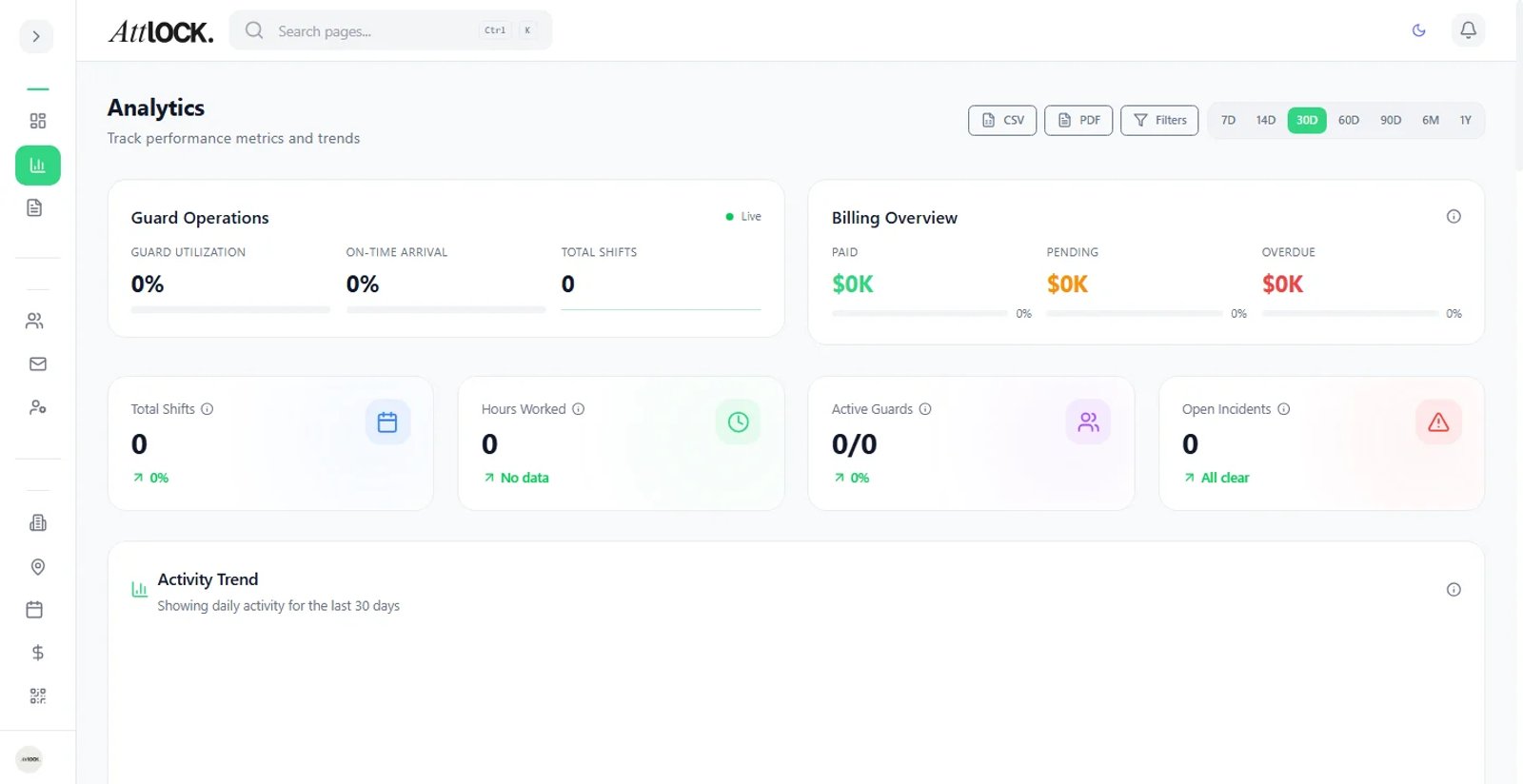
Navigate to Admin > Wellness in the sidebar. The dashboard displays:
- Active Check-ins: guards currently on shift with their latest check-in status.
- Pending Responses: guards who have received a prompt but have not yet responded.
- Overdue Alerts: guards who missed their response window, flagged for supervisor attention.
- Historical Log: a searchable timeline of all past check-ins and outcomes.
How Wellness Check-ins Work
When a guard clocks in to a shift, the wellness system activates automatically:
- The guard receives a push notification on the Attlock mobile app at the configured interval.
- The notification asks a simple confirmation question (e.g., "Are you okay?").
- The guard taps Yes to confirm, or can select Need Assistance to flag an issue.
- The response is logged and visible on the Wellness dashboard in real time.
Check-ins continue at regular intervals until the guard clocks out or the shift ends.
Viewing Check-in Status and History
From the Wellness dashboard, click any guard's name to open their individual wellness timeline. Each entry shows:
- Timestamp of the prompt sent.
- Response time (how long the guard took to reply).
- Response type (Confirmed, Need Assistance, or Missed).
- Any notes the guard added when flagging an issue.
Use the date picker and status filters to narrow results for reporting or incident review.
Configuring Check-in Frequency
- Go to Admin > Wellness > Settings.
- Set the Default Interval (e.g., every 30, 60, or 120 minutes).
- Optionally configure Site-Level Overrides for high-risk locations that require more frequent check-ins.
- Set the Response Window — the amount of time a guard has to respond before the check-in is marked overdue (default: 10 minutes).
- Click Save to apply.
Tip: For sites with lone workers or overnight shifts, consider setting the interval to 30 minutes or less.
Escalation When a Guard Does Not Respond
When a guard misses the response window, the system follows an escalation sequence:
- First attempt: a second push notification is sent immediately.
- After 5 minutes: the assigned supervisor receives an alert with the guard's last known location.
- After 10 minutes: the site manager and operations team are notified.
- After 15 minutes: the incident is logged as a welfare concern and appears in the Command Center.
You can customize escalation timing and recipients under Admin > Wellness > Escalation Rules.
Important: Ensure supervisors have push notifications enabled on their devices so escalation alerts are not missed.
Relationship with Lone Worker Safety Checks
Wellness check-ins complement the Lone Worker module. When a guard is marked as a lone worker for their shift:
- Check-in frequency automatically increases to the lone worker interval (configurable separately).
- Missed responses trigger the lone worker escalation path, which can include emergency services notification.
- Both wellness and lone worker check-in histories appear on the same timeline for unified reporting.
Mental Health and Fatigue Indicators
The Wellness dashboard tracks patterns that may signal fatigue or stress:
- Slow response times: guards consistently taking longer to respond may indicate fatigue.
- Frequent "Need Assistance" flags: recurring flags from the same guard warrant a supervisor conversation.
- Consecutive long shifts: the system highlights guards who have worked extended hours without adequate rest.
These indicators appear as colored badges on the dashboard. Use them as a starting point for welfare conversations, not as automated disciplinary triggers.
Tip: Pair wellness monitoring with your scheduling rules to enforce minimum rest periods between shifts.
Tips
- Review the Wellness dashboard at the start of each supervisory shift to catch any overnight issues.
- Export wellness reports for compliance audits via Wellness > Export.
- Encourage guards to use the "Need Assistance" option — it helps build a culture of safety.
Related Articles
- Live Tracking & Welfare Checks
- Managing Guards
- Settings & Configuration