


Managing Guard Availability & Preferences
Effective scheduling starts with knowing when your guards are available and where they prefer to work. Attlock lets guards set their own availability through the mobile app, and gives administrators a consolidated view to build schedules that respect those preferences.
How Guards Set Their Availability
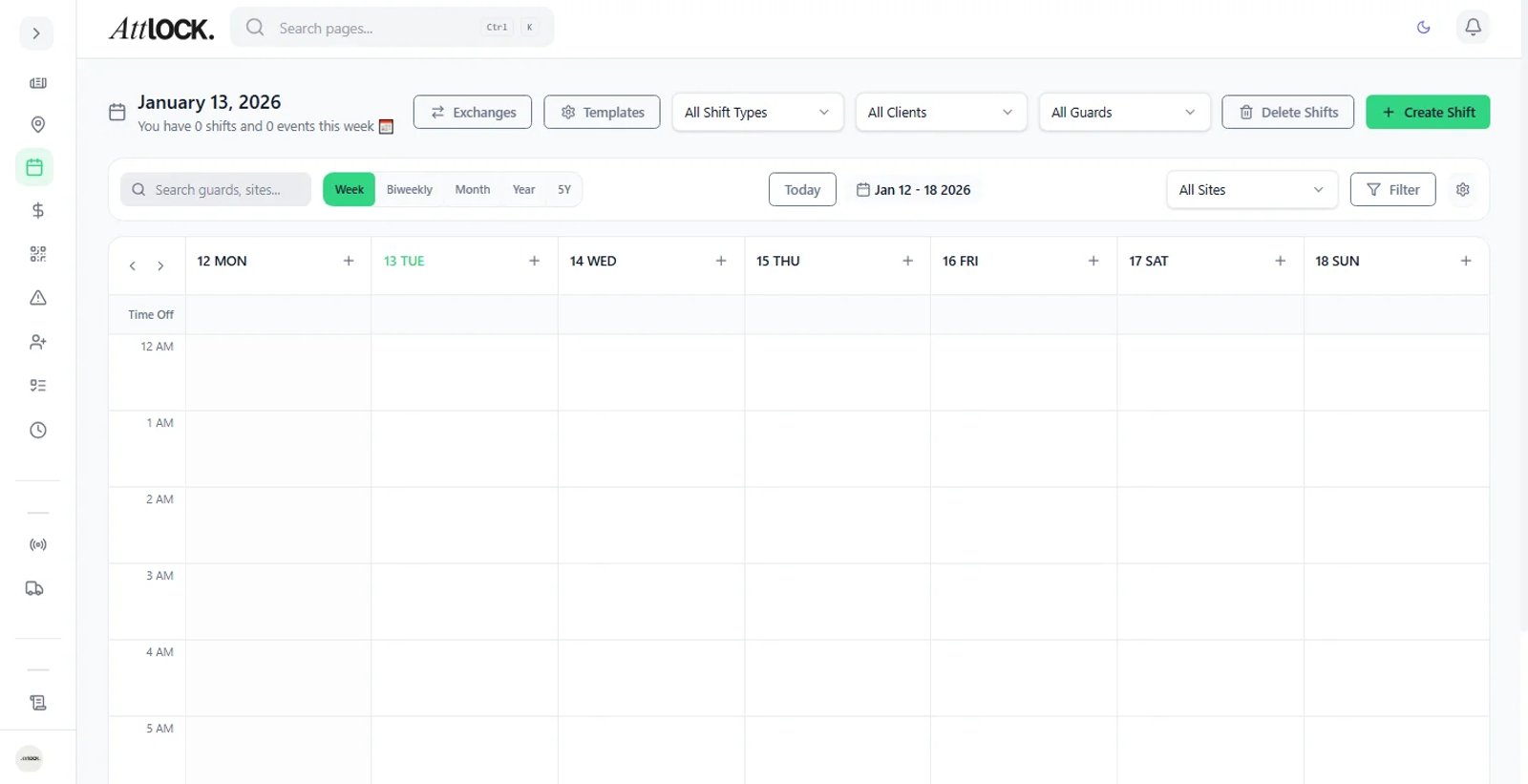
Guards manage their availability directly in the Attlock mobile app:
- The guard opens the app and navigates to My Availability.
- They set their weekly recurring availability by toggling days on or off and setting start/end times for each day.
- They can mark blackout dates for vacations, personal commitments, or other unavailable periods.
- They select preferred shifts (Day, Night, Overnight, Weekends) and preferred sites from their assigned locations.
- Changes are saved and synced to the admin dashboard in real time.
Tip: Encourage guards to keep their availability up to date. Accurate preferences reduce scheduling conflicts and last-minute changes.
Viewing Guard Availability in the Admin Dashboard
Navigate to Admin > Scheduling > Staff Availability to see a consolidated view of all guard availability:
- Calendar View: a weekly or monthly grid showing each guard's available hours, color-coded by status (Available, Partially Available, Unavailable).
- List View: a filterable table of all guards with their availability summary, preferred shifts, and any active blackout dates.
- Filters: narrow by site, role, skills, or availability status to find the right guards quickly.
Click any guard's name to open their detailed availability profile, including their full preference history.
Preferred Shifts and Sites
Each guard can indicate:
- Shift preferences: which shift types they prefer (Day Shift, Night Shift, Weekends, Overnight). These are soft preferences, not hard constraints.
- Preferred sites: locations where they would like to be assigned. This is useful when guards live near certain sites or have client-specific training.
When building schedules, preferred assignments appear as suggestions. The scheduler highlights guards whose preferences align with an open shift.
Blackout Dates and Restrictions
Guards can submit blackout dates for periods when they are completely unavailable:
- Blackout requests appear under Staff Availability > Pending Requests for supervisor approval.
- Approved blackouts are reflected on the scheduling calendar as blocked time.
- Supervisors can also add restrictions on behalf of guards (e.g., medical leave, training days).
Important: Blackout dates that overlap with already-scheduled shifts will trigger a conflict alert. Resolve these before approving the request.
Using Availability Data When Creating Schedules
When you create or edit a shift in the scheduler:
- Open the shift slot and click Assign Guard.
- The assignment panel shows guards sorted by fit — those who are available and whose preferences match appear first.
- Guards with conflicts (blackout dates, overlapping shifts, exceeded weekly hours) are shown at the bottom with warning icons.
- Hover over any guard to see a quick summary of their availability, preferences, and current week hours.
This workflow helps you build compliant schedules faster without manually checking each guard's calendar.
Conflict Detection with Preferences
Attlock automatically checks for conflicts when assigning guards:
- Availability conflict: the guard is marked as unavailable for the shift's time window.
- Blackout conflict: the shift falls within an approved blackout period.
- Preference mismatch: the guard has not listed this shift type or site as preferred (shown as a soft warning, not a blocker).
- Hours conflict: assigning this shift would exceed the guard's configured maximum weekly hours.
- Rest period violation: insufficient rest time between consecutive shifts.
Conflicts appear as color-coded badges on the assignment panel. Red badges are hard blocks; yellow badges are warnings you can override.
Override Options for Urgent Staffing Needs
When you need to fill a shift urgently and no fully available guard is found:
- Select a guard with a soft conflict (yellow warning).
- Click Override & Assign and provide a reason for the override.
- The guard receives a notification about the assignment with a note explaining the urgency.
- The override is logged in the scheduling audit trail for compliance tracking.
Overrides do not change the guard's stated preferences — they remain intact for future scheduling.
Important: Overriding rest period violations should be a last resort. Fatigued guards pose safety risks. Consider offering premium pay or shift swaps first.
Tips
- Review the Staff Availability dashboard at the start of each scheduling cycle to catch new blackout requests.
- Use the Preference Match sort when assigning guards to improve satisfaction and reduce turnover.
- Export availability reports for workforce planning under Staff Availability > Export.
- Pair availability data with the Wellness Monitor to ensure guards on frequent overrides are not showing fatigue indicators.
Related Articles
- Scheduling Shifts
- Managing Guards
- Guard Wellness Monitoring