


Guard Ratings & Preferences
Rate the guards who work at your sites and set preferences for who you'd like to see more often.
Accessing Guard Ratings
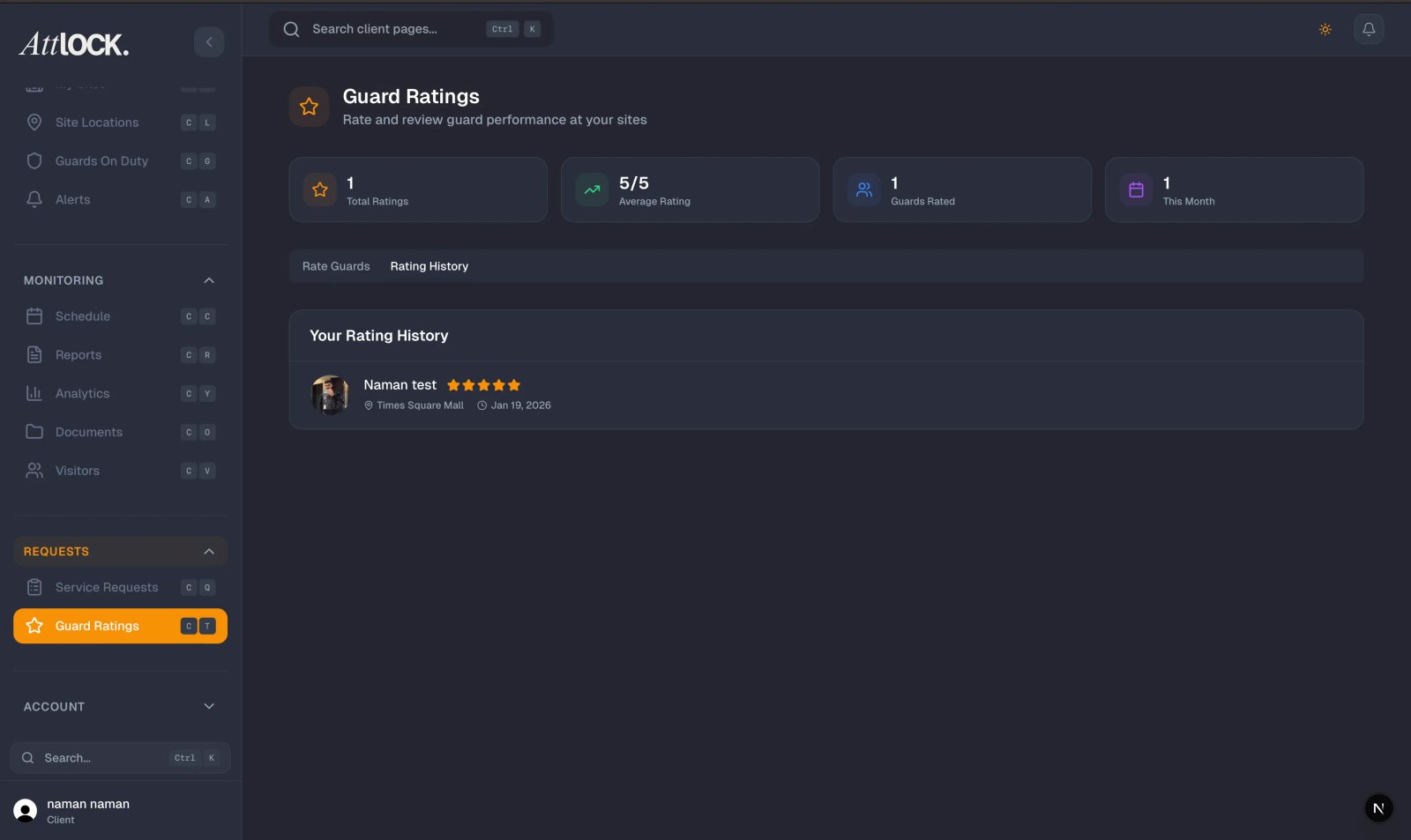
Tap Guard Ratings from the More menu.
Rating Guards
- Select a site (if you have multiple).
- You'll see all guards who have worked at your site in the last 30 days.
- For each guard:
- View their name and photo.
- See the number of shifts they've worked at your site.
- View their current average rating (if you've rated them before).
- Tap Rate next to a guard.
- Select a rating from 1 to 5 stars.
- Submit.
What Your Ratings Do
Your ratings help the security company:
- Understand which guards perform best at your site.
- Make better scheduling decisions.
- Address performance issues.
Guard Preferences
If the permission is enabled for your account, you can mark guards as preferred:
- Preferred guards will be prioritized for scheduling at your sites.
- Your security provider can see your preferences and factor them into assignments.
Tips
- Rate guards after each shift while the experience is fresh.
- Provide honest ratings — it helps improve the service you receive.
- Talk to your security provider if a specific guard is consistently underperforming.
Related Articles
- Viewing Live Guard Positions
- Viewing Guard Schedule
- Submitting Service Requests