


Guard Performance & Statistics
Track your personal performance, activity metrics, and trends over time.
Accessing Stats
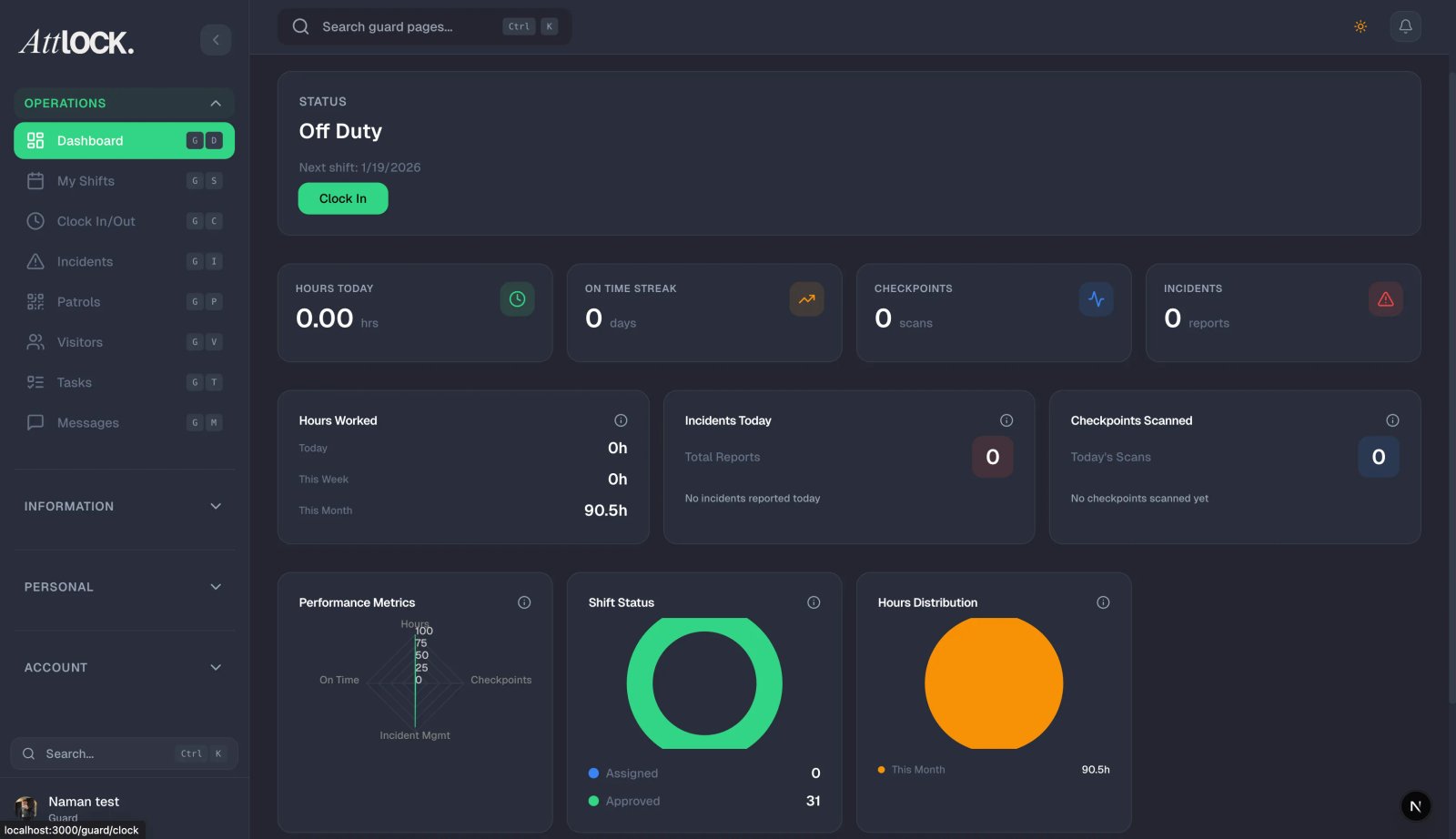
Your statistics appear in several places:
- Home Screen — quick daily stats (scans, hours, assigned shifts).
- Stats page — detailed metrics (accessible from More menu).
- Timesheet — hours and earnings breakdown.
Home Screen Quick Stats
The Home tab shows four cards:
- Scans Today — checkpoint scans completed today.
- Hours — toggle between today, this week, biweekly, monthly, yearly.
- Assigned — pending shift count.
- Approved — confirmed shift count.
Activity Timeline
Below the stats cards on the Home screen, the Activity Timeline shows a chronological log of today's events:
- "Clocked In" with time and site.
- "X Checkpoint(s) Scanned."
- "X Incident(s) Reported."
- Other shift activities.
Detailed Statistics
The Stats page provides deeper metrics:
Key Metrics
- Total Scans — all checkpoint scans for the period.
- Incidents Reported — total incidents filed.
- Hours Worked — with day/week/month toggle.
- Checkpoint Compliance Rate — percentage of required scans completed.
- On-Time Rate — how often you clocked in on time.
Performance Trends
- Charts showing your metrics over time.
- Compare current period vs. previous periods.
- Identify improvement areas.
Tips
- Check your stats weekly to stay on top of your performance.
- Aim for high checkpoint compliance — it's often tracked by management.
- Clock in on time — your on-time rate affects performance reviews.
- Use the Hours toggle on the home screen to track overtime approaching.
Related Articles
- Viewing Your Timesheet
- Scanning Checkpoints
- Completing a Patrol Tour
- Clocking In and Out of Shifts