


Getting Started with the Guard Mobile App
The Attlock guard mobile app is your daily companion for everything on the job — clocking in, completing patrols, reporting incidents, managing equipment, and staying connected with your team. This guide walks you through setup and helps you feel confident navigating every feature.
Downloading the App
- iOS (iPhone/iPad): Open the App Store, search for "Attlock", and tap Install.
- Android: Open Google Play, search for "Attlock", and tap Install.
- Wait for the download and installation to complete. The app icon will appear on your home screen.
Tip: Make sure you have at least 150 MB of free storage and a stable internet connection before downloading.
Your First Login
When your company sets you up on Attlock, you'll receive an email invitation with instructions to create your account. Here's what to do once the app is installed:
- Open the Attlock app on your phone.
- Tap Sign In on the welcome screen.
- Enter the email address from your invitation — this must match exactly.
- Enter the password you created when you accepted the invitation.
- If prompted, enable biometric login (Face ID or fingerprint) — this lets you get into the app much faster on future logins.
- Grant location permissions when the app asks. Choose "Always" or "While Using App" — location access is essential for clock-in verification, patrol tracking, and geofence monitoring.
- Grant notification permissions — you'll receive shift reminders, schedule changes, emergency alerts, and messages from your team.
Note: If you haven't received an invitation email, check your spam folder. If it's not there, ask your supervisor or admin to resend it.
Understanding the Home Screen
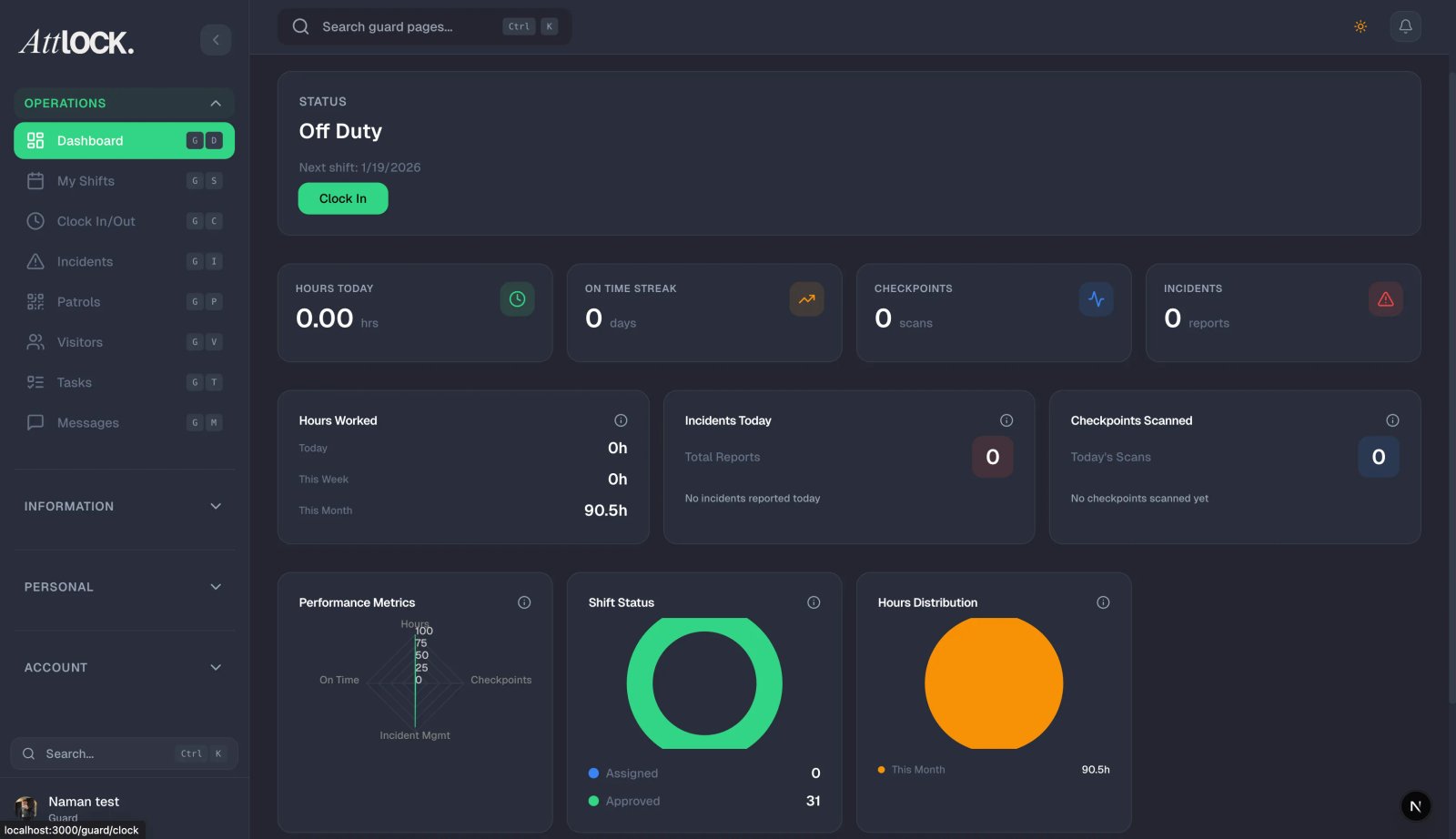
After logging in, you'll land on the Home tab. This is your daily dashboard — it gives you a snapshot of your shift, stats, and recent activity.
Header
- When you're on shift, you'll see an encouraging message like "Keep it up!"
- When you're off shift, you'll see "Let's start strong!"
- The notification bell in the top right shows your unread alerts. Tap it to view them.
Shift Hero Card
If you have an active shift, a prominent card appears showing:
- Site name where you're working.
- Expected end time for the current shift.
- Clock-in time showing when you started.
- Daily summary — quick counts of checkpoints scanned, incidents reported, and pass-down logs created.
Quick Stats Cards
Four cards give you at-a-glance metrics:
- Scans Today — how many checkpoint scans you've completed.
- Hours — your working hours with a toggle to view by today, this week, biweekly, monthly, or yearly.
- Assigned — number of pending (unconfirmed) shifts.
- Approved — number of confirmed upcoming shifts.
Activity Timeline
A chronological feed of today's events appears below the stats. You'll see entries like:
- "Clocked In" with the time and site name.
- "X Checkpoint(s) Scanned" as you complete your patrol.
- "X Incident(s) Reported" when you file reports.
This timeline helps you track everything you've done during your shift at a glance.
Navigating the App
The app has five tabs at the bottom of the screen. Here's what each one does:
| Tab | Icon | What It Does | ----- | ------ | -------------- | Home | House | Your daily dashboard with shift info, stats, and activity timeline | Schedule | Calendar | View upcoming and completed shifts, accept or decline assignments | Clock | Clock | Clock in and out, manage breaks during your shift | Profile | Person | Update your account info, security settings, and preferences | More | Grid | Access every feature — patrols, incidents, equipment, and more |
|---|
The "More" Menu — All Features
Tap the More tab (grid icon) to see the full list of available features. These may vary depending on your site configuration:
- Emergency — Panic/SOS button for immediate danger.
- Scan — NFC and QR checkpoint scanner.
- Checkpoints — View all checkpoints at your site.
- Patrol — Start and complete a guided patrol tour.
- Incident Reports — File detailed incident reports with photos and signatures.
- Vehicle — Complete vehicle inspections before patrol.
- Parking — Log vehicle entries and issue parking violations.
- Equipment — Check in and out assigned equipment.
- Visitors — Log visitor check-ins and check-outs.
- Post Orders — Read and acknowledge standing orders and policies.
- Pass-down — Write and read shift handover notes.
- Message Board — View company and site announcements.
- Shift Swap — Trade shifts with other guards.
- Time Off — Submit leave requests.
- Timesheet — View your hours and pay details.
- Training — Complete assigned training modules.
- Tasks — View and complete shift tasks and checklists.
Setting Up Permissions
For the app to work properly, you need to enable certain permissions in your phone's Settings. Here's what each one does and why it matters:
- Location — Set to "Always" or "While Using App." Required for clock-in verification, geofence monitoring, and patrol tracking. Without this, you won't be able to clock in.
- Camera — Needed for scanning NFC/QR checkpoints, taking photos for incident reports, and vehicle inspections.
- Notifications — Ensures you receive shift reminders, schedule changes, emergency alerts, welfare check-ins, and team messages.
- NFC (Android only) — Required for scanning NFC checkpoint tags. Go to Settings > Connected Devices > NFC and make sure it's turned on.
Tips
- Keep the app updated — new features, security patches, and bug fixes are released regularly. Enable auto-updates if possible.
- Charge your phone before shifts — GPS tracking and scanning use moderate battery. Consider bringing a portable charger for long shifts.
- Enable biometric login — it's faster and more secure than typing your password every time.
- Check notifications regularly — don't miss shift changes, urgent alerts, or messages from your supervisor.
- Explore the More menu — familiarize yourself with all available features before your first shift so you know where everything is.
- Bookmark this article — come back to it anytime you need a refresher on app navigation.
Troubleshooting
Can't log in
- Verify your email matches the one in your invitation exactly (check for typos).
- Reset your password using the "Forgot Password" link on the login screen.
- Make sure you have a stable internet connection (Wi-Fi or cellular data).
- If you still can't get in, contact your supervisor — your account may need to be reactivated.
Location not working
- Go to your phone's Settings > Attlock > Location and set it to "Always" or "While Using App."
- Make sure GPS/Location Services are enabled globally on your device.
- Step outside or away from thick concrete walls if the signal is weak.
Not receiving notifications
- Go to Settings > Attlock > Notifications and make sure all notification types are enabled.
- Check that Do Not Disturb mode is off (or that Attlock is added as an exception).
- On Android, make sure Attlock is not being restricted by battery optimization — go to Settings > Battery > Attlock and select "Unrestricted."
App is running slowly
- Close other apps running in the background.
- Make sure you have the latest version of Attlock installed.
- Restart your phone if performance doesn't improve.
Related Articles
- Clocking In and Out of Shifts
- Viewing Your Upcoming Schedule
- Using the Emergency SOS Button
- Completing a Patrol Tour
- Scanning Checkpoints (NFC & QR)
- Managing Your Profile and Settings