


Getting Started with the Client Portal
The Attlock client portal puts you in control of your security services. Monitor guard activity in real-time, access incident reports, manage visitors, review invoices, and communicate with your security provider — all from your phone or computer.
Downloading the App
The Attlock Client app is available on both major platforms:
- iOS — Open the App Store and search for "Attlock Client." Tap Get to download.
- Android — Open Google Play and search for "Attlock Client." Tap Install to download.
The app is free to download. Your security provider will send you an invitation email with your login credentials.
First Login
- Open the Attlock Client app on your device.
- Tap Sign In on the welcome screen.
- Enter the email address from your invitation.
- Enter the password provided by your security provider (or the one you set during account setup).
- Grant notification permissions when prompted — this ensures you receive real-time alerts for incidents and guard activity.
- You will land on the Home dashboard.
If you did not receive an invitation email, contact your security provider directly or check your spam folder.
Home Screen Overview
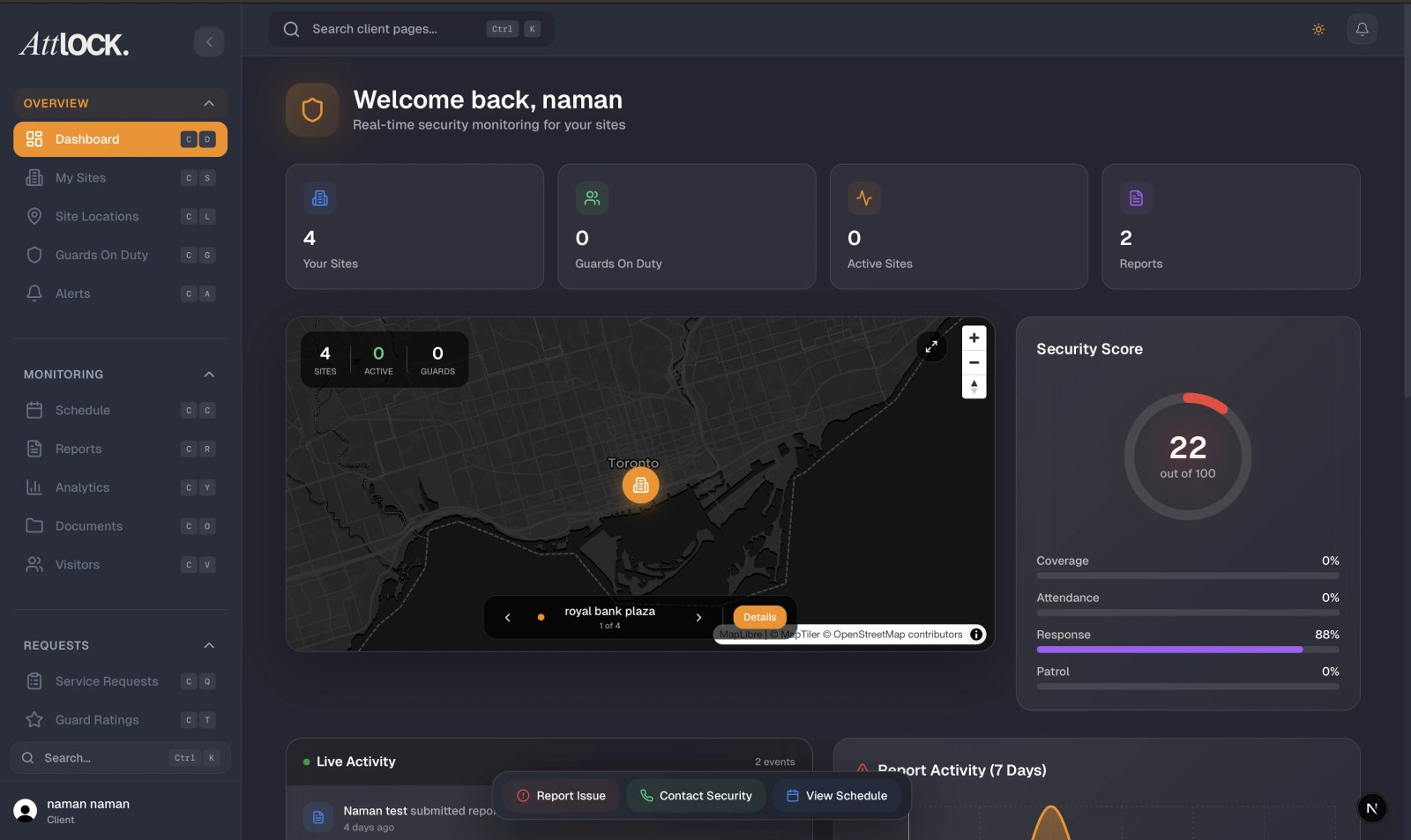
The dashboard gives you an at-a-glance view of your security posture:
- Activity Feed — A live stream of recent events across all your sites, including guard check-ins, incidents, and reports.
- Guards on Duty — The total number of guards currently working across your sites.
- Sites Overview — A list of your sites with the number of active guards at each location.
- Security Provider Information — Your provider's name, contact details, and quick-access links.
Navigation
Five tabs at the bottom of the screen provide quick access to the main sections:
| Tab | Purpose | ----- | --------- | Home | Dashboard with activity feed, guard counts, and site overview | Sites | Browse all your assigned security sites and view site details | Guards | Live guard tracking on an interactive map with GPS positions | Profile | Account settings, security, and notification preferences | More | Access all additional features (reports, invoices, visitors, etc.) |
|---|
Profile Menu
Tap Profile to access the full menu of features:
- My Profile — Edit your personal information.
- Alerts — View security alerts and notifications.
- Schedule — See guard shift schedules at your sites.
- My Visitors — Pre-register and manage visitors.
- Invoices — View billing history and download statements.
- Documents — Access contracts, policies, and other files.
- Service Requests — Submit and track requests to your security provider.
- Parking — Check parking lot availability.
- Post Orders — View standing guard instructions for your sites.
- Guard Ratings — Rate guard performance and set preferences.
- Site Reports — Read incident and patrol reports.
- Site Locations — View your sites on a map.
- Emergency Contact — Quick access to emergency numbers.
- Support — Get help and contact support.
- Security Provider — View your provider's details.
- Notification Settings — Configure which alerts you receive.
Tips
- Check the dashboard daily for a quick overview of security activity across all your sites.
- Enable push notifications to receive real-time alerts for incidents, guard arrivals, and schedule changes.
- Use the Guards tab to see live guard positions on the map — it refreshes every 30 seconds.
- Explore the More menu to discover all available features like analytics, parking, and post orders.
- Set your timezone in Profile settings so shift times display correctly for your location.
Related Articles
- Viewing Live Guard Positions
- Viewing Site Reports
- Pre-Registering Visitors
- Submitting Service Requests
- Client Profile & Account Settings