


Downloading & Setting Up the Client App
The Attlock client app gives you real-time visibility into your security operations from anywhere. This guide walks you through downloading the app, signing in, and completing your initial setup.
Where to Download
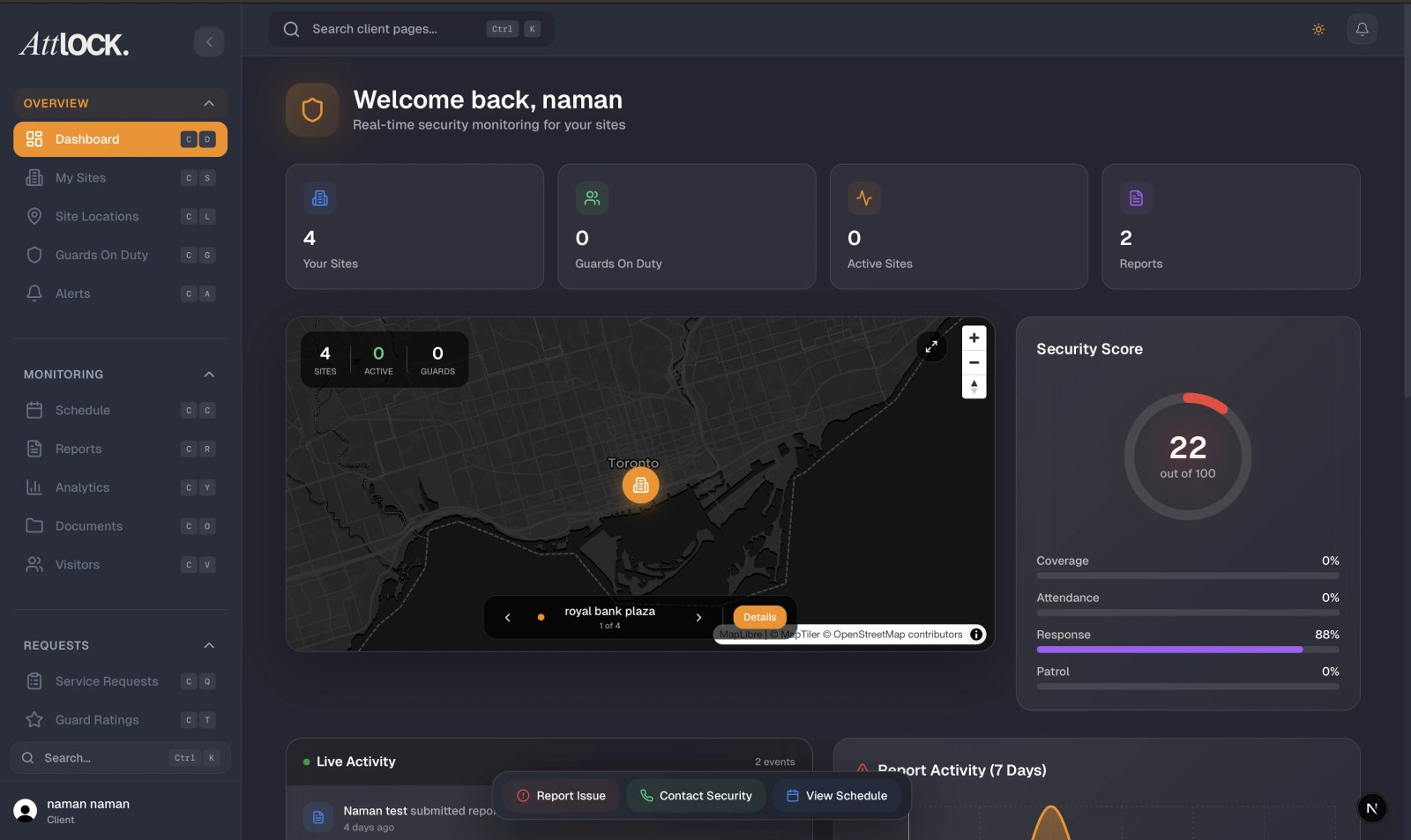
The Attlock client app is available on both major platforms:
- iOS — Search for "Attlock Client" in the Apple App Store, or tap the download link from your invitation email.
- Android — Search for "Attlock Client" in the Google Play Store, or tap the download link from your invitation email.
Make sure you download the app labeled Attlock Client — there are separate apps for guards and administrators.
Signing In With Your Client Account
- Open the Attlock Client app after installation.
- Tap Sign In on the welcome screen.
- Enter the email address associated with your client account.
- Enter your password, or use the Sign in with Google or Sign in with Apple option if your account is linked.
- If two-factor authentication is enabled, enter the verification code sent to your device.
Accepting an Invitation
If your security provider sent you an invitation:
- Open the invitation email on your phone.
- Tap the Accept Invitation link — this opens the Attlock Client app automatically.
- If you don't have the app installed yet, you'll be redirected to the appropriate app store first.
- Follow the on-screen prompts to create your password and complete registration.
- Once accepted, you'll be connected to your security provider's workspace.
First-Time Onboarding Walkthrough
After signing in for the first time, you'll see a brief onboarding tour:
- Welcome screen — A quick overview of what the app offers.
- Your sites — A summary of the properties currently assigned to your account.
- Key features — Highlights of guard tracking, incident alerts, and reporting.
- Tap Get Started to finish the tour and land on your dashboard.
Granting Permissions
The app will request the following permissions during setup:
- Push Notifications — Required to receive real-time incident alerts, guard arrival updates, and shift notifications. We strongly recommend enabling this.
- Location (optional) — Used only if your provider enables proximity-based features. You can skip this if prompted.
On iOS, tap Allow when the notification prompt appears. On Android, make sure notifications are enabled in your device settings under Apps > Attlock Client > Notifications.
Overview of the Bottom Tab Bar
Once setup is complete, you'll see five tabs at the bottom of the screen:
| Tab | Purpose | ----- | --------- | Home | Your dashboard with activity feed, guard counts, and site overview. | Sites | Browse all your properties with details, contacts, and guard schedules. | Guards | View guards currently on duty with a live interactive map. | Profile | Manage your account, notification preferences, and security settings. | More | Access reports, invoices, support, and additional features. |
|---|
You're all set! Head to the Home tab to start monitoring your security operations in real time.