


Configuring Shift Break Policies
This article is for Administrators and Company Admins.
Break policies define when guards are entitled to rest periods, how long those breaks should be, and whether they are paid or unpaid. Attlock lets you configure these rules centrally so they apply consistently across all shifts and sites — keeping you compliant with labour regulations and ensuring accurate payroll calculations.
Where to Find Break Policy Settings
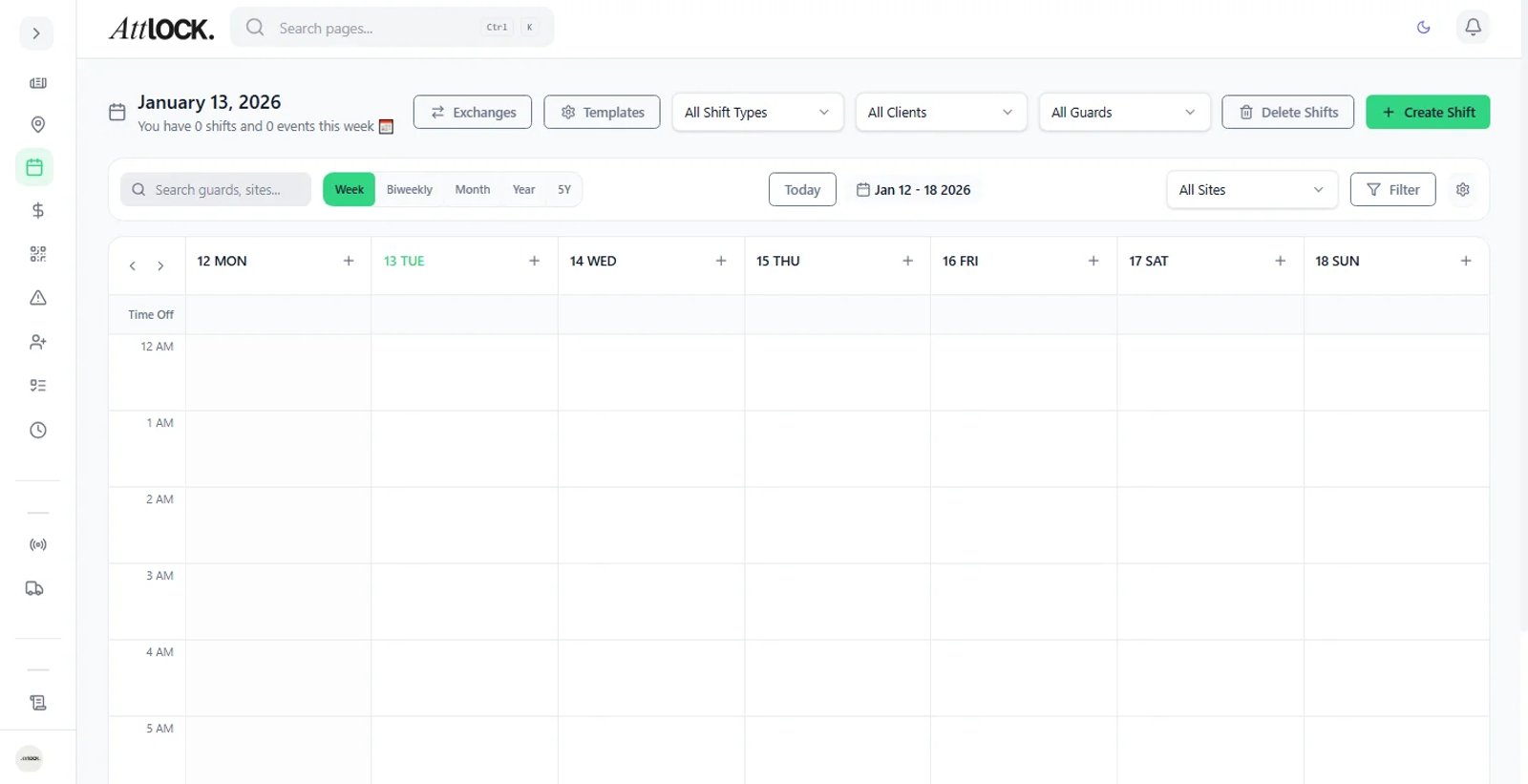
Navigate to Settings → Scheduling → Break Policies. This page lists all active break policies and lets you create, edit, or archive them.
Creating a Break Policy
- Click New Break Policy.
- Give the policy a descriptive name (e.g., "Standard 8-Hour Shift", "Night Shift Policy").
- Configure the break rules:
Break Rule Fields
| Field | Description | ------- | ------------- | Minimum shift length | The shortest shift duration that triggers this break rule | Break duration | How long the break should be (in minutes) | Break type | Paid or Unpaid | Number of breaks | How many breaks of this type apply per shift | Break timing | Fixed time, or flexible within a window |
|---|
- Add multiple rules to the same policy for shifts of different lengths (e.g., one rule for shifts over 4 hours, another for shifts over 8 hours).
- Click Save Policy.
Automatic Break Deductions
For unpaid breaks, Attlock can automatically deduct break time from a guard's total worked hours when calculating payroll.
- In the break policy, toggle Auto-Deduct Unpaid Breaks to On.
- Set the Deduction Threshold — the minimum shift length before the deduction applies.
- Enter the Deduction Amount in minutes.
When payroll is processed, the deduction is applied automatically. Guards and supervisors can see the deduction on their shift summary.
Assigning Break Policies to Sites or Shifts
Break policies can be assigned at two levels:
Site level — applies to all shifts at a specific site:
- Go to Sites → [Site Name] → Settings.
- Under Break Policy, select the policy from the dropdown.
- Save.
Shift level — overrides the site policy for a specific shift:
- When creating or editing a shift in the Scheduling module, expand Advanced Options.
- Select a Break Policy Override.
- Save the shift.
Shift-level assignments take precedence over site-level assignments.
Break Compliance Tracking
Attlock tracks whether guards actually took their scheduled breaks:
- Guards log break start and end times via the mobile app.
- The Scheduling → Break Compliance report shows missed, late, or short breaks by guard, site, and date range.
- Supervisors receive an alert if a guard on a long shift has not logged a break within the expected window.
Regulatory Presets
Attlock includes presets for common labour regulations:
| Preset | Rule Summary | -------- | ------------- | UK Working Time Regulations | 20-min unpaid break for shifts over 6 hours | EU Working Time Directive | 11-hour rest between shifts; 20-min break over 6 hours | US FLSA (General) | Paid breaks under 20 min; unpaid meal breaks 30+ min |
|---|
Select a preset as a starting point and adjust to match your specific jurisdiction or collective agreement.
Best Practices
- Create separate policies for day and night shifts — night shift regulations often differ.
- Enable auto-deduction for unpaid breaks — prevents payroll discrepancies.
- Review break compliance monthly — missed breaks can create legal liability.
- Communicate policies to supervisors — they are responsible for ensuring guards take breaks on time.
Related Articles
- Scheduling Shifts
- Overtime Rules Configuration
- Payroll Management
- Holiday Pay Configuration