


Completing Training Modules
Training keeps your skills sharp, your knowledge current, and your certifications up to date. Your company assigns training modules through Attlock — from safety procedures and compliance requirements to operational skills and new technology training.
Why Training Matters
- Compliance — many jurisdictions require security guards to complete specific training hours. Staying current keeps you and your company in compliance.
- Safety — training on emergency procedures, de-escalation, and first aid can save lives — including your own.
- Career development — completing training modules demonstrates professionalism and may open doors to promotions or better assignments.
Accessing Training
- Tap the More tab at the bottom of the screen.
- Tap "Training" (Award icon, blue).
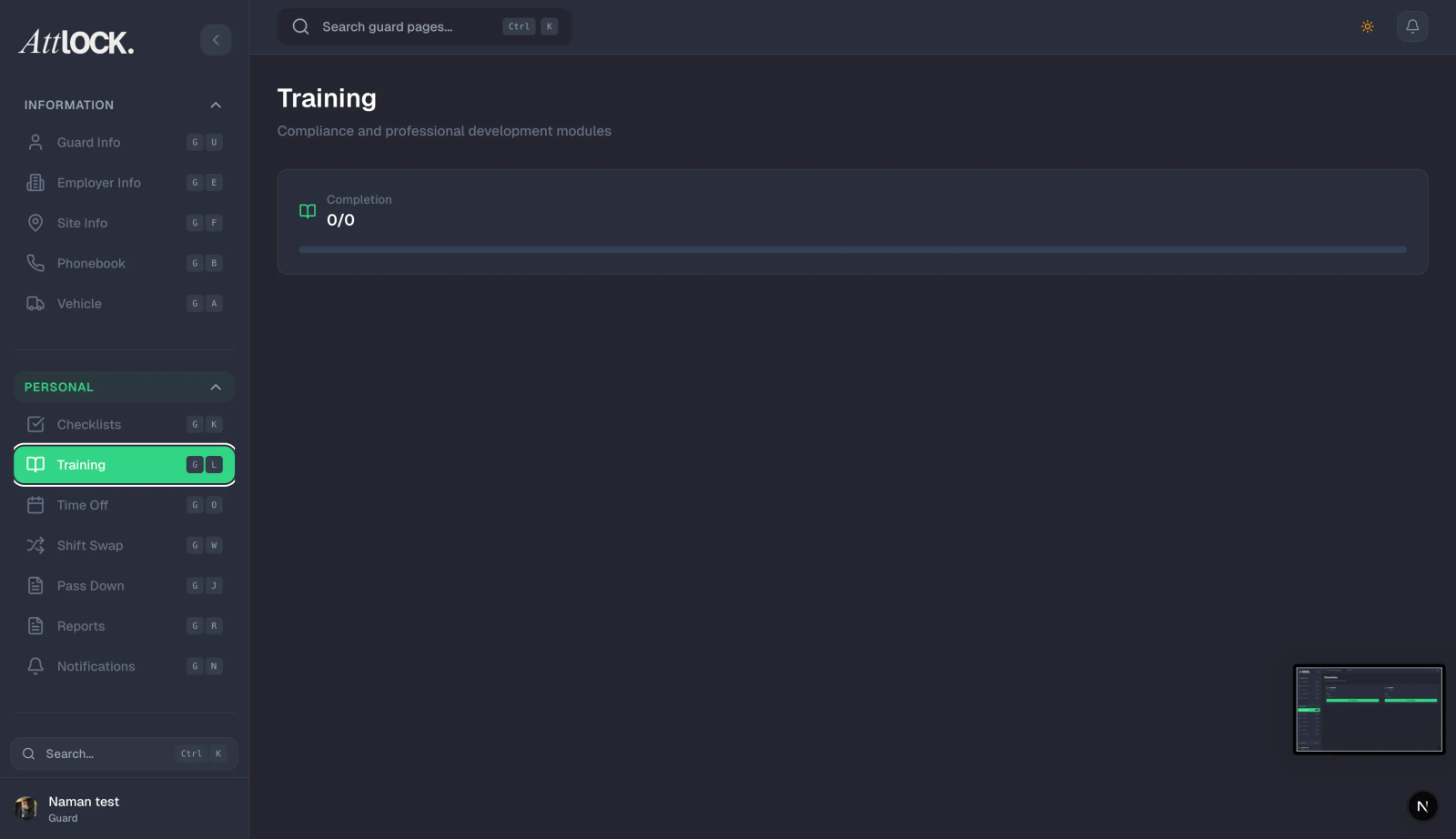
- The Training screen opens with the subtitle: "Enhance your skills & compliance."
Viewing Your Progress
At the top of the screen, an overview card shows:
- Award icon — your training achievement indicator.
- "Your Progress" with a counter (e.g., "3/5 Completed").
- A visual progress bar that fills as you complete modules.
This gives you a quick view of how much training you have left.
Browsing Assigned Modules
Below the progress card, you'll see a list of all your assigned training modules. Each module card shows:
- Status icon:
- Green checkmark = Completed — you've finished this module.
- Blue play button = Pending — you still need to complete it.
- Orange clock = In Progress — you've started but haven't finished.
- Title — the name of the training module.
- Duration (Clock icon) — estimated time to complete (e.g., "5 min," "20 min," "1 hour").
- Status text: To Do, In Progress, or Completed.
- Category tag — the type of training:
- COMPLIANCE — required by regulation or company policy.
- SAFETY — workplace safety and emergency procedures.
- OPERATIONS — operational procedures and protocols.
- TECHNOLOGY — training on tools, software, or equipment.
- Other custom categories your company may configure.
Completing a Training Module
- Tap a module card to open it.
- The Module Viewer opens showing:
- Video player — if the module includes video content, it plays here.
- Course description — an overview of what you'll learn.
- Requirements box — what you need to do to complete the module. Common requirements include:
- "Watch the entire video."
- "Complete the quiz with 80% score or higher."
- "Read all sections."
- "Acknowledge that you understand the material."
- Work through the module content:
- For video modules — watch the entire video. You typically can't skip ahead.
- For reading modules — read through all sections.
- For quiz modules — answer the questions. If you don't pass, you may be able to retake the quiz.
- When all requirements are met, tap "Mark as Complete."
- A green banner confirms: "Training Completed" with a checkmark.
- Your progress bar updates automatically.
Retaking a Quiz
If your training module includes a quiz and you don't meet the required score:
- The app will show your score and the minimum passing score.
- You'll have the option to retake the quiz (the number of retakes may be limited by your admin).
- Review the material before trying again.
Tips
- Complete required training promptly — overdue training modules may affect your compliance status, scheduling priority, or eligibility for certain assignments.
- Take notes — some training content is directly relevant to your daily duties. Jot down key procedures or emergency protocols.
- Don't rush through modules — the point is to learn, not just to check a box. Understanding the material makes you a better and safer guard.
- Complete training during downtime — quiet periods during your shift (with supervisor approval) can be a good time to work on training modules.
- Check for new modules regularly — your company may assign new training at any time, especially after policy changes or incidents.
- Keep track of certifications — if a training module is tied to a certification (e.g., first aid, CPR), note the expiration date so you can renew on time.
- Ask questions — if something in a training module is unclear, ask your supervisor for clarification. It's better to understand fully than to guess.
Related Articles
- Getting Started with the Guard Mobile App
- Reading Post Orders and Policies
- Completing Shift Tasks and Checklists
- Guard Performance and Statistics