


Communicating with Your Supervisor
This article is for Security Guards.
Staying connected with your supervisor is a core part of working safely and effectively. Attlock gives you several ways to reach your supervisor directly from the app — whether you need to flag an issue, ask a question, or escalate an urgent situation. This guide covers all the communication tools available to you.
Communication Channels in Attlock
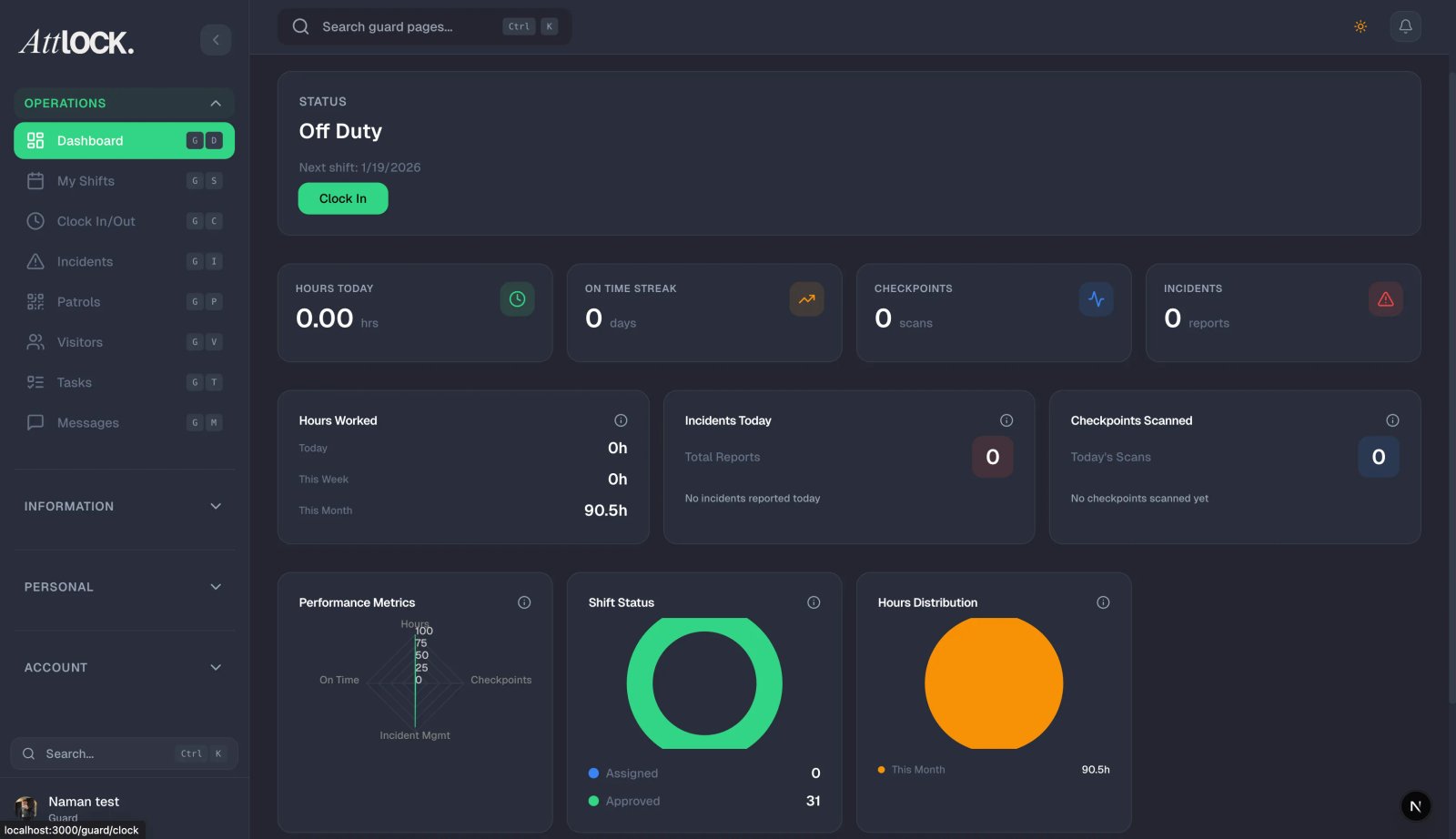
Attlock provides three main ways to communicate with your supervisor:
| Channel | Best For | --------- | ---------- | Direct Message | Questions, updates, non-urgent issues | Pass-Down Log | Shift handover notes, ongoing situations | Emergency SOS | Immediate danger or life-threatening situations |
|---|
For routine communication, use Direct Messaging. The Pass-Down Log is for shift-to-shift information. The SOS button is strictly for emergencies.
Sending a Direct Message
- Tap the More tab at the bottom of the screen.
- Tap Phonebook (or Messages, depending on your app version).
- Find your supervisor in the contact list. Supervisors are labeled with their role.
- Tap their name to open the conversation.
- Type your message in the text field at the bottom.
- Tap Send (arrow icon).
Your supervisor will receive a push notification and can reply from their own device or the web dashboard.
Tip: If you can't find your supervisor in the Phonebook, they may not have been added to your site's contact list yet. Ask your site manager to update the phonebook.
What to Include in Your Messages
Clear, concise messages get faster responses. When messaging your supervisor:
- State your location — which site, building, or zone you're in.
- Describe the situation briefly — one or two sentences is usually enough to give context.
- Say what you need — are you asking a question, requesting guidance, or just providing an update?
- Include a time reference — "at approximately 22:30" is more useful than "just now."
Example of a clear message:
"Hi, I'm at Gate B on the north perimeter. Found a broken padlock on the maintenance shed — looks like it was cut. No one is on site. Should I file an incident report and contact facilities, or wait for your guidance?"
Raising Concerns and Issues
If you have a concern about your shift, site conditions, or a workplace matter:
- Use Direct Message for non-urgent concerns during your shift.
- For concerns about your schedule or pay, message your supervisor during business hours when possible.
- For safety concerns that aren't an immediate emergency, message your supervisor and also document the issue in a Pass-Down Log entry so there's a written record.
- If your concern involves a serious workplace issue (harassment, unsafe conditions), follow your company's formal reporting procedure in addition to messaging your supervisor.
Escalating Urgent Situations
If a situation is developing quickly and you need an immediate response:
- Call your supervisor directly using the phone number in the Phonebook.
- If you can't reach them, call the next contact in the escalation chain (usually a duty manager or operations center).
- If you are in immediate danger, use the Emergency SOS button — this alerts your entire response chain simultaneously.
Never rely solely on a text message for a rapidly evolving situation. A phone call is always faster.
Reading Supervisor Messages
When your supervisor sends you a message, you'll receive a push notification. To read it:
- Tap the notification, or open the app and go to More > Phonebook > your supervisor's conversation.
- Read the message and reply promptly — supervisors often need confirmation that you've received instructions.
- If a message contains instructions, acknowledge them: "Understood, will do" is enough.
Checking the Message Board
Your supervisor may post announcements and updates to the Message Board rather than messaging guards individually. Check it at the start of every shift:
- Tap More > Message Board.
- Read any unread announcements (marked with a badge).
- Acknowledge posts that require it.
Tips
- Respond to messages promptly — even a brief acknowledgment lets your supervisor know you're aware and on top of things.
- Don't use messaging for emergencies — if you're in danger, use SOS or call immediately.
- Keep a professional tone — written messages are logged and may be reviewed.
- Check the Message Board daily — important policy updates and site-specific instructions are often posted there.
- Save your supervisor's number — in case you need to call outside the app.
Related Articles
- Using the Message Board and Announcements
- Using the Pass-Down Log
- Using the Emergency SOS Button
- Using the Phonebook
- Submitting an Incident Report