


Client Profile & Account Settings
Manage your personal information, security settings, and notification preferences.
Accessing Profile
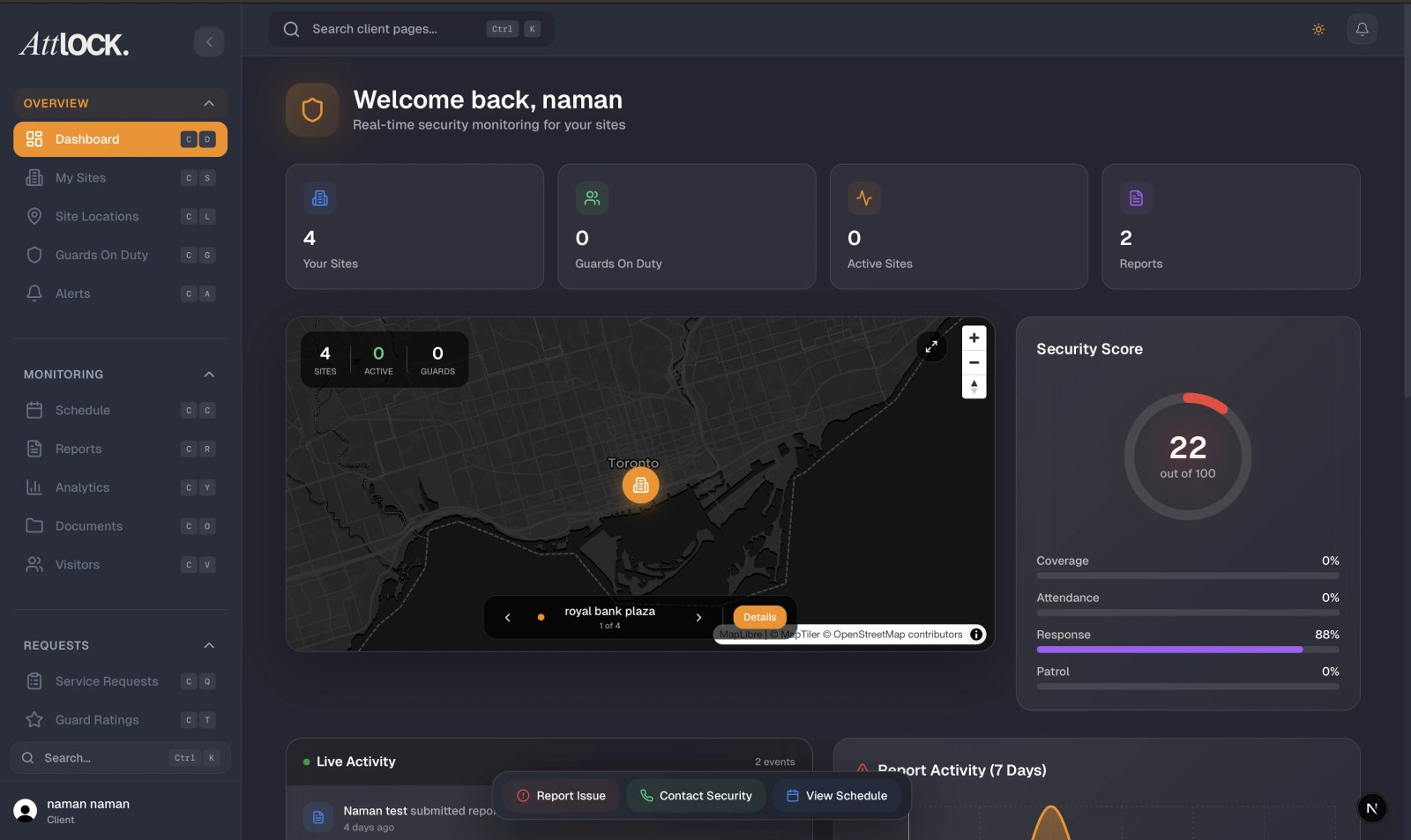
Tap the Profile tab at the bottom of the screen.
Edit Profile
- Tap My Profile or Edit Profile.
- Update:
- First Name and Last Name
- Email Address
- Phone Number
- Company Name / Organization
- Save your changes.
Security Settings
Tap Security in the Profile menu.
- Change Password — enter your current password and set a new one.
- Two-Factor Authentication — enable for extra security (if available).
- View Login History — see recent account activity.
- Manage Active Sessions — sign out of other devices.
Notification Settings
Tap Notification Settings in the Profile menu.
Toggle notification types:
- Incident Alerts — get notified when incidents are reported at your sites.
- Guard Arrival/Departure — know when guards clock in and out.
- Report Submissions — be alerted when new reports are filed.
- Schedule Updates — shift changes and schedule modifications.
- General Announcements — company-wide messages.
Language & Timezone
Tap Language & Timezone in the Profile menu.
- Language — select your preferred display language.
- Timezone — set your local timezone.
- Date Format — choose your preferred date display format.
- Time Format — 12-hour or 24-hour clock.
Tips
- Keep your email updated — it's used for invoice delivery and alerts.
- Enable two-factor authentication for better account security.
- Set your timezone correctly so shift times display accurately.
Related Articles
- Getting Started with the Client Portal
- Viewing Alerts
- Contacting Your Security Provider